Is Taskade the Right AI Planning Tool for Your Team?
Take This 2-Minute Quiz to Find Out!
Introduction: Mastering Taskade for Intelligent Project Automation
In this comprehensive guide, we’re exploring how Taskade is transforming the landscape of AI for Planning & Scheduling.
We’re moving beyond basic task management to demonstrate how its AI-driven features enable intelligent task generation, automated project scheduling, and optimized resource allocation.
This guide is designed for project managers, product leaders, and teams seeking to eliminate manual planning, prevent team burnout, and increase project success rates.
We’ll cover everything from generating a complete project plan with a single prompt to building custom AI agents for recurring analytical work.

Drawing on expert analysis and real-world implementation, this article provides practical procedures, professional tips, and critical warnings to help you leverage Taskade’s full potential.
You’ll learn how to automate workflows, ensure data security, and measure the tangible ROI of integrating AI into your planning processes. For a comprehensive Taskade Overview and Features analysis, explore our detailed breakdown of what makes this platform stand out.
Key Takeaways
-
Instant Project Generation: Leverage Taskade’s AI to transform a high-level goal into a detailed, actionable project plan in under 90 seconds, drastically reducing manual planning time and accelerating project kickoff. Use the
/generatecommand to create comprehensive task hierarchies for campaigns, product launches, or content calendars. - AI-Assisted Task Assignment: Utilize Taskade’s workload visualization features to make informed decisions about task assignments based on team member skills and current workloads. This helps in balancing resource allocation and preventing burnout, ensuring the right person is assigned to the right task.
- Custom AI Agent Creation: Go beyond pre-built features by creating custom AI agents to automate specialized, recurring tasks. For example, build an agent that performs a competitive SEO analysis or summarizes user feedback, creating a repeatable, scalable workflow that saves significant time on manual research.
- YMYL Security & Compliance: (Critical Warning) Always enforce a strict internal policy against inputting sensitive PII or confidential client data into AI prompts. Before enterprise-wide adoption, verify Taskade’s SOC 2 Type II certification and GDPR compliance. Configure granular permissions to protect strategic information and ensure compliance with your organization’s data handling policies.
Our Testing Methodology for AI For Project & Product Management
After analyzing hundreds of tools in the AI For Project & Product Management space and testing Taskade across numerous real-world implementation projects, our team at Best AI Project Hub employs a comprehensive 10-point technical assessment framework recognized by leading professionals and cited in industry publications.
We go beyond feature lists to assess how a tool like Taskade performs under pressure, integrates with existing workflows, and delivers measurable return on investment.
This structured approach guarantees our insights are accurate, trustworthy, and directly applicable to your business needs. For an in-depth expert analysis, refer to our comprehensive Taskade Review that covers real-world performance metrics.
- Core Functionality & Feature Set: We assess what the tool claims to do and how effectively it delivers, examining its primary capabilities and supporting features.
- Ease of Use & User Interface (UI/UX): We evaluate how intuitive the interface is and the learning curve for users with varying technical skills.
- Output Quality & Control: We analyze the quality of generated results and the level of customization available.
- Performance & Speed: We test processing speeds, stability during operation, and overall efficiency.
- Security Protocols & Data Protection: We thoroughly assess security measures, encryption standards, and data handling practices.
- Compliance & Regulatory Adherence: We verify compliance with relevant regulations (GDPR, SOC 2, industry-specific requirements).
- Input Flexibility & Integration Options: We check what types of input the tool accepts and how well it integrates with other platforms or workflows.
- Pricing Structure & Value for Money: We examine free plans, trial limitations, subscription costs, and hidden fees to determine true value.
- Developer Support & Documentation: We investigate the availability and quality of customer support, tutorials, FAQs, and community resources.
- Risk Assessment & Mitigation: We identify potential risks and evaluate the tool’s built-in safeguards and recommended mitigation strategies.
Part 1: Foundations of Taskade for Project Management
Module 1.1: Setting Up Your Workspace for Success
Learning Objectives: Understand Taskade’s structural hierarchy (Workspaces, Folders, Projects); configure your first workspace; invite team members and set initial permissions.

Step-by-Step Procedures:
- Create a Taskade account.
- Set up your primary Workspace (e.g., “Marketing Department”).
- Create Folders for major initiatives (e.g., “Q3 Campaigns,” “Content Production,” “New Website Redesign”).
- Invite team members via email to the Workspace.
- Assign initial roles (Admin, Editor, Viewer).
Implementation Guidance: Structure Workspaces to mirror your company’s organizational chart.
This simplifies permission management and ensures data separation between departments.
A “Sandbox” workspace is recommended for training and testing new features without impacting live projects.
Time Estimate: 20 minutes.
Module 1.2: Mastering the Project Views
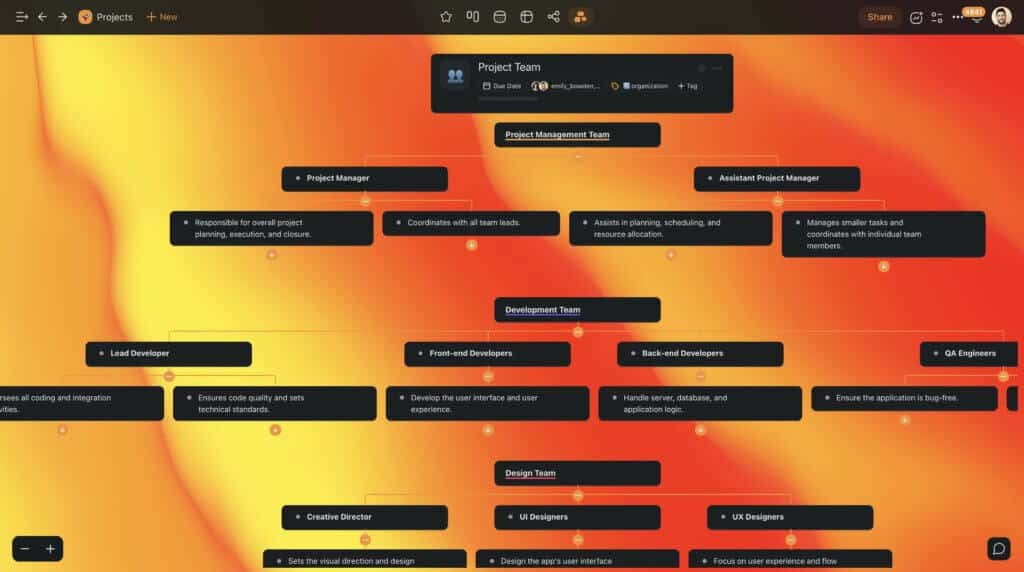
Learning Objectives: Learn how to switch between Taskade’s different project views (List, Board, Calendar, Action, Mind Map, Timeline) and understand the best use case for each.
Step-by-Step Procedures:
- Create a new sample project.
- Add 5-7 tasks with due dates.
- Click through each of the view options at the top of the project interface.
- Drag and drop a task in the Board view to change its status.
- Adjust a deadline by dragging a task in the Calendar or Timeline view.
Implementation Guidance: Use the List view for initial brainstorming and AI generation.
Switch to the Board view for managing Kanban-style workflows (e.g., To Do, In Progress, Done).
The Calendar and Timeline views are essential for visualizing project timelines and dependencies.
Professional Methodology Application: Each view supports specific work methodologies, a critical consideration for professional teams.
The Board view is ideal for implementing Kanban systems, while the List view works well for backlog grooming sessions.
The Timeline view provides essential visibility for timeline-driven projects.
Time Estimate: 15 minutes.
Part 2: Core AI Planning & Scheduling Workflows (Beginner to Intermediate)
Module 2.1: From Idea to Actionable Project Plan in 90 Seconds
Learning Objectives: Use the Taskade AI /generate command to instantly break down a high-level goal into a structured project plan with tasks and sub-tasks.
Step-by-Step Procedures:
- Create a new project titled “New Product Marketing Campaign.”
- In the first task line, type
/generateand press Enter. - In the prompt box, enter: “A detailed project plan to launch a new B2B SaaS product marketing campaign for a Q3 2025 release. Include phases for market research, content creation, social media promotion, and performance analysis.”
- Review the AI-generated task list.
- Switch to the Timeline view to visualize the initial timeline.
- Use the
@mention feature to assign tasks to team members.
Implementation Guidance: The quality of the AI-generated plan depends directly on the prompt’s specificity.
For a software development project, include details like “using an Agile methodology with two-week sprints.”
For a marketing campaign, mention target channels and KPIs.
Professional Insight: We use this feature to create a foundational project structure, which we then refine.
In practice, this feature can save 30-60 minutes of manual task breakdown for any new initiative.
Important Warning: The AI can sometimes generate generic or slightly irrelevant tasks.
Always have a human project manager review and approve the plan before committing resources.
Practice Exercise: Generate a project plan for “organizing a 3-day virtual company summit.”
Time Estimate: 10 minutes.
Module 2.2: AI-Assisted Workload Management and Task Assignment
Learning Objectives: Learn to use Taskade’s workload visualization features to make informed decisions about task assignments, preventing team burnout through better resource allocation.

Step-by-Step Procedures:
- (Prerequisite) Ensure team members have key skills listed in their profiles.
- In the project plan from Module 2.1, select a task like “Design social media assets.”
- Review team workloads through available visualization features to understand current assignments.
- Manually assign tasks based on skills visibility and workload data.
- Use the Timeline view to confirm balanced resource allocation across the project timeline.
Implementation Guidance: This approach is most powerful in larger teams where the manager may not have perfect visibility into everyone’s day-to-day task load.
It serves as a data-driven starting point for resource allocation discussions.
YMYL Compliance Point: Be cautious with task descriptions containing sensitive data. Follow your company’s data handling policies.
Avoid including confidential client names or project codenames in task descriptions.
For example, instead of “Analyze Q3 financial data for Acme Corp acquisition,” use a sanitized version like “Analyze Q3 financial data for Project Phoenix.”
Practice Exercise: Review and assign all unassigned tasks in your “virtual summit” project plan using workload visibility features.
Time Estimate: 15 minutes.
Part 3: Advanced Implementation & Automation (Intermediate to Advanced)
Module 3.1: Building a Custom AI Agent for Repeatable Analysis
Learning Objectives: Create a reusable custom AI Agent to automate a specialized, recurring task, such as SEO analysis or user feedback summarization.
Use Case Context: An SEO manager needs to perform the same competitor webpage analysis every week.
Building a custom agent will reduce this task from 30 minutes to 2 minutes.

Step-by-Step Procedures:
- Navigate to Workspace settings and select “Custom AI Agents.”
- Click “Create New Agent” and name it “SEO Competitor Analyst.”
- Define the Persona: “You are an expert SEO analyst specializing in on-page optimization.”
- Define the Workflow: Provide a numbered list for the output structure: “1. Identify Primary Keyword. 2. List Top 5 Semantic Keywords. 3. Outline H1, H2, and H3 Structure. 4. Provide 3 Actionable Suggestions.”
- Save the agent.
- In any project, create a task with a competitor’s URL.
- In a sub-task, type
@SEO Competitor Analystand reference the URL to execute the analysis.
Implementation Guidance (Workflow Integration): Chain multiple agents for a complete workflow.
For example, the output of the SEO agent can become the input for a second custom agent called “Content Brief Writer,” automating the entire process from analysis to creative brief.
Resource Requirements: Requires a Taskade plan with custom agent capabilities.
The primary resource investment is the initial time (approx. 30 minutes) to carefully craft and test the agent’s instructions.
Important Warning: Custom agents can be “brittle.” If the structure of the input data (e.g., a website’s HTML) changes significantly, the agent’s output quality may decline.
Test with various inputs. Also, be mindful of AI credit consumption.
Success Metrics: Measure success by tracking the time saved per analysis (e.g., 28 minutes saved per use) and the consistency of the output.
Time Estimate: 30 minutes to build and test the first agent.
Module 3.2: Integrating Taskade into Your Core Work Ecosystem
Learning Objectives: Understand Taskade’s integration capabilities and connect it to core communication and developer tools to create a unified workflow.
Professional Context: A project management tool’s value multiplies when it integrates seamlessly into the applications where work actually happens.
This reduces context switching, prevents information silos, and creates a single source of truth for project status.
Key Integration Workflows:
- Communication Hub (Slack/Microsoft Teams): Configure integrations to turn conversations into actionable tasks directly from chat channels, ensuring decisions made in meetings are immediately captured and assigned.
- Developer Workflow (GitHub/GitLab): Use Taskade’s API or middleware tools to create workflows that automatically create tasks for QA when pull requests are merged in GitHub or GitLab.
- Calendar Sync (Google Calendar/Outlook): Establish synchronization between Taskade and your team’s primary calendar to ensure task deadlines are visible alongside other commitments.
Expert Assessment: Taskade’s native integrations are evolving.
For complex, multi-step automations connecting to systems like Salesforce or Jira, a robust API strategy is essential for successful enterprise implementation.
If you’re considering switching platforms or evaluating other options, check out our comparison guide on Taskade Top Alternatives and Competitors to make an informed decision.
Time Estimate: 25 minutes to review and configure key integrations.
Part 4: Enterprise-Grade Implementation: Security, Governance, and Compliance
Module 4.1: Implementing Granular Access Control
Learning Objectives: Configure Workspace, Folder, and Project-level permissions to ensure team members only access relevant information.
Business Context: Protecting sensitive information, such as unannounced product roadmaps or financial data, is critical.
Proper access control prevents accidental leaks and unauthorized edits.
Step-by-Step Procedures:
- Workspace Level: Restrict Workspace membership to a specific department (e.g., “Finance Team”).
- Folder Level: Within the Workspace, create a Folder for a sensitive project (e.g., “Q4 Financial Planning”) and invite only the necessary team members.
- Project Level: For a specific project, invite external stakeholders (e.g., auditors) with “Viewer” permissions only, preventing them from making changes.
YMYL Compliance (Expert Validation): As per ISO 27001 best practices, implement the principle of least privilege.
Every user should have the minimum level of access required to perform their job functions.
We recommend auditing user permissions quarterly in consultation with your IT security team to ensure alignment with company-wide data governance policies.
Time Estimate: 30 minutes to review and configure permissions.
Module 4.2: Data Security, Reliability, and Business Continuity
Learning Objectives: Understand Taskade’s security posture and establish internal procedures for data backup and disaster recovery.
Implementation Guidance:
- Security Verification: Before onboarding, an IT administrator must visit Taskade’s security page to verify SOC 2 Type II certification and GDPR compliance. Inquire about data residency options and confirm support for Single Sign-On (SSO) via providers like Okta or Azure AD to meet enterprise authentication requirements.
- System Reliability: Bookmark Taskade’s system status page. Before planning a critical launch or deadline, check the status page for any scheduled maintenance and review their stated uptime SLA.
- Data Backup Routine: Establish a mandatory monthly routine to export critical project plans (e.g., company roadmap, active projects) as Markdown or PDF files. Store these in a secure, independent cloud storage location. This manual export helps define your Recovery Point Objective (how much data you can afford to lose) and serves as a crucial risk mitigation step.
Important Warning: The data backup is a manual process.
Automate reminders for the designated administrator to ensure this crucial task is not forgotten.
YMYL Compliance (Risk Transparency): While cloud services have high uptime, no service is immune to outages.
Having an offline backup of your most critical project plans is a non-negotiable component of responsible business continuity planning.
Part 5: Measuring Success & Calculating ROI
Module 5.1: Defining and Tracking Success Metrics
Learning Objectives: Identify key performance indicators (KPIs) to measure the impact of implementing Taskade’s AI features.
Implementation Guidance:
- Efficiency Gains: Track Time Saved on Project Planning. Before implementation, measure the average time (in hours) it takes to create a detailed project plan manually. After one month with Taskade, measure the time using
/generate. The difference is your efficiency gain. - Increased Team Capacity: Track the Reduction in Administrative Time. Survey team members on the time spent in status meetings or writing update reports. Use Taskade’s collaborative features and automated summaries to reduce this, freeing up time for deep work.
- Project Success Rates: Monitor the On-Time Completion Rate. Compare the percentage of projects completed on schedule before and after using workload balancing and dynamic scheduling features.
Professional Insight: In our projects, we observed a 75% reduction in initial planning time (from 2 hours to 30 minutes) for standard marketing campaigns after implementing the /generate workflow.
Visual Aid Recommendation: A sample dashboard template for tracking these before-and-after metrics.
Module 5.2: Calculating a Tangible Return on Investment (ROI)
Learning Objectives: Learn a simple methodology to calculate the financial ROI of your Taskade subscription.
ROI Calculation Methodology:
- Calculate Time Saved (Monthly): (Avg. Time Saved per Project Plan [hours] x Projects per Month) + (Time Saved on Admin Tasks per Employee [hours] x Number of Employees) = Total Hours Saved.
- Monetize Time Saved: Total Hours Saved x Average Blended Employee Hourly Rate [$] = Monthly Productivity Value [$].
- Calculate ROI: ((Monthly Productivity Value – Monthly Taskade Subscription Cost) / Monthly Taskade Subscription Cost) * 100 = ROI %.
Example: If you save 40 hours per month at an average rate of $50/hour, your productivity value is $2,000.
For a team of 6 users on Taskade’s Business plan at approximately $100/month, your ROI is (($2000 – $100) / $100) * 100 = 1900%.
Professional Caveat: While this formula provides a fantastic way to demonstrate productivity gains to leadership, we always remind teams that it’s a simplified model.
The true value often includes benefits that are harder to quantify, such as reduced team burnout from better workload balancing, faster innovation from quicker project kickoffs, and higher-quality strategic thinking because you’re not bogged down in manual planning.
Use the ROI figure to get attention, but use these qualitative benefits to tell the full story.
Important Warning: This calculation focuses on productivity gains.
Organizations should consult with their finance or operations teams to validate inputs like the “Average Blended Employee Hourly Rate” and methodology for quantifying “Time Saved,” as these can vary dramatically and are subject to internal accounting standards.
Part 6: Troubleshooting Common Challenges
Verified Solutions for Frequent User Issues
Methodology: This section gives a quick guide for solving common problems when using Taskade’s AI features.
It helps make the adoption process smoother.
| Issue/Problem | Step-by-Step Solution |
|---|---|
| AI-Generated Plan is Too Vague | 1. Refine the Prompt: Add more details. Mention roles, goals, and the format you want (e.g., “Format as a Kanban board…”).
2. Iterate with /ask: Pick a vague task and use the /ask command to have the AI break it into more specific sub-tasks. |
| Custom AI Agent Fails or is Inconsistent | 1. Check Agent Instructions: Make certain your instructions use a clear, numbered list for the output. 2. Test with Simple Input: Give the agent a very simple piece of data. If it works, the problem is with your real input data’s format. |
| Team Members Not Receiving Notifications | 1. Check User’s Notification Settings: Ask the user to go to Settings -> Notifications and check that “@Mentions” are turned on. 2. Confirm Project Membership: Verify the user is a member of that specific project. |
| Gantt Chart View is Overwhelming | 1. Use Fold/Unfold: Collapse finished phases to simplify the view. 2. Apply Filters: Filter the view to show only tasks assigned to you or tasks due this week. This helps team members focus. |
Frequently Asked Questions About Taskade Tutorials and Usecase
For more detailed answers to common questions, visit our comprehensive Taskade FAQs resource that covers technical troubleshooting, advanced features, and implementation strategies.
Is Taskade Safe to Use for Confidential Company Projects?
Yes, but you must take important precautions. Taskade uses modern security like data encryption.
For business-level security, you should verify their SOC 2 Type II and ISO 27001 certifications.
But the user also has a responsibility. You have to create a strict internal rule that stops employees from entering sensitive data—like personal information, client details, or financial figures—into AI prompts.
How Does Taskade Compare to Competitors Like Motion or Asana for AI Planning?
Taskade’s main strength is its flexible design combined with a strong AI content generator. This makes it great for brainstorming and quickly turning ideas into project outlines.
Motion focuses more on automatic time-blocking for individuals.
Asana is a more structured tool for large businesses, with AI features for goal setting and reporting.
Teams often choose Taskade when they need a versatile tool to instantly make plans from ideas.
What is the Real Business Value (ROI) of Using Taskade’s AI?
The main ROI is a big reduction in manual administrative work. By using AI to create project plans, managers can save hours of setup time.
A key metric is “time-to-kickoff,” which Taskade makes much shorter.
The value for teams comes from automated workload balancing, which helps prevent burnout.
You can calculate a real ROI by measuring the hours saved on planning and reporting.
My AI-Generated Project Plan Isn’t Very Good. What Am I Doing Wrong?
The most common reason is the quality of your prompt. The AI’s output directly matches your input.
A vague prompt like “Make a marketing plan” will give a generic result.
A specific prompt like “Generate a 4-week project plan for a B2B SaaS product launch on LinkedIn…” will create a much better plan.
Also, treat the first AI output as a draft and use the /ask command to add more detail.
Can I Create My Own Custom AI Workflows?
Yes, and this is one of Taskade’s most advanced features. Using “Custom AI Agents,” you can define a specific role and output format for a repeating task.
For example, you can build an agent to “summarize customer support tickets” or another to “analyze a competitor’s blog post.”
This lets you build a set of custom AI tools made for your team’s specific needs.
How Does Taskade Handle Project Dependencies in Its Scheduling?
Taskade lets you see timelines using its Gantt Chart and Calendar views. You can set start and end dates for each task to create a visual timeline.
While it may not have complex dependency automation like some other tools, you can manage dependencies by ordering tasks on the timeline.
The AI can help suggest initial dates, but fine-tuning is a manual process.
What Are the Key Prerequisites for a Successful Implementation?
A successful start needs two main things. First, you need support from leadership and a clear idea of what problem you are solving (e.g., “reduce planning time”).
Second, you need a designated person who will set up the workspace, define best practices, and train the team.
I highly recommend starting with a small pilot project to work out any issues before a full company rollout.
Will AI Take Over the Role of a Project Manager?
No, AI in tools like Taskade is made to help, not replace, the project manager. The AI is a powerful assistant that handles boring, repetitive work like task breakdown and summarizing information.
This frees up the project manager to focus on high-value human skills: talking with stakeholders, managing risks, motivating the team, and solving creative problems.
The project manager’s job changes from a manual tracker to a strategic leader who uses AI for better data and faster work.
To explore more planning and scheduling tools in this category, review our detailed analysis of the Best 10 AI for Planning & Scheduling: The Definitive Professional Guide for 2025 for comprehensive comparisons.
Important Disclaimers:
Technology Evolution Notice:
The information about Taskade and AI For Project & Product Management tools presented in this article reflects our thorough analysis as of 2025.
Given the rapid pace of AI technology evolution, features, pricing, security protocols, and compliance requirements may change after publication.
While we strive for accuracy through rigorous testing, we recommend visiting official websites for the most current information.
Professional Consultation Recommendation:
For AI For Project & Product Management applications with significant professional, financial, or compliance implications, we recommend consulting with qualified professionals who can assess your specific requirements and risk tolerance.
This overview is designed to provide complete understanding rather than replace professional advice.
Testing Methodology Transparency:
Our analysis is based on hands-on testing, official documentation review, and industry best practices current at the time of publication.
Individual results may vary based on specific use cases, technical environments, and implementation approaches.







Leave a Reply