
Is Microsoft Loop the Right Collaboration Tool for Your Team?
Take This Quick Quiz to Find Out!
Key Takeaways
- Collaborative Innovation: Loop introduces portable components that sync across all Microsoft 365 applications, eliminating information silos
- Enterprise Integration: Loop is included with business Microsoft 365 subscriptions, but AI features require separate Copilot licensing
- Strategic Positioning: Loop complements rather than replaces dedicated project management tools like Jira or Asana
- Implementation Approach: Hybrid strategies work best – use Loop for collaboration while maintaining existing PM tools for workflow management
What is Microsoft Loop and how does it differ from Microsoft Teams, Planner, and OneNote?
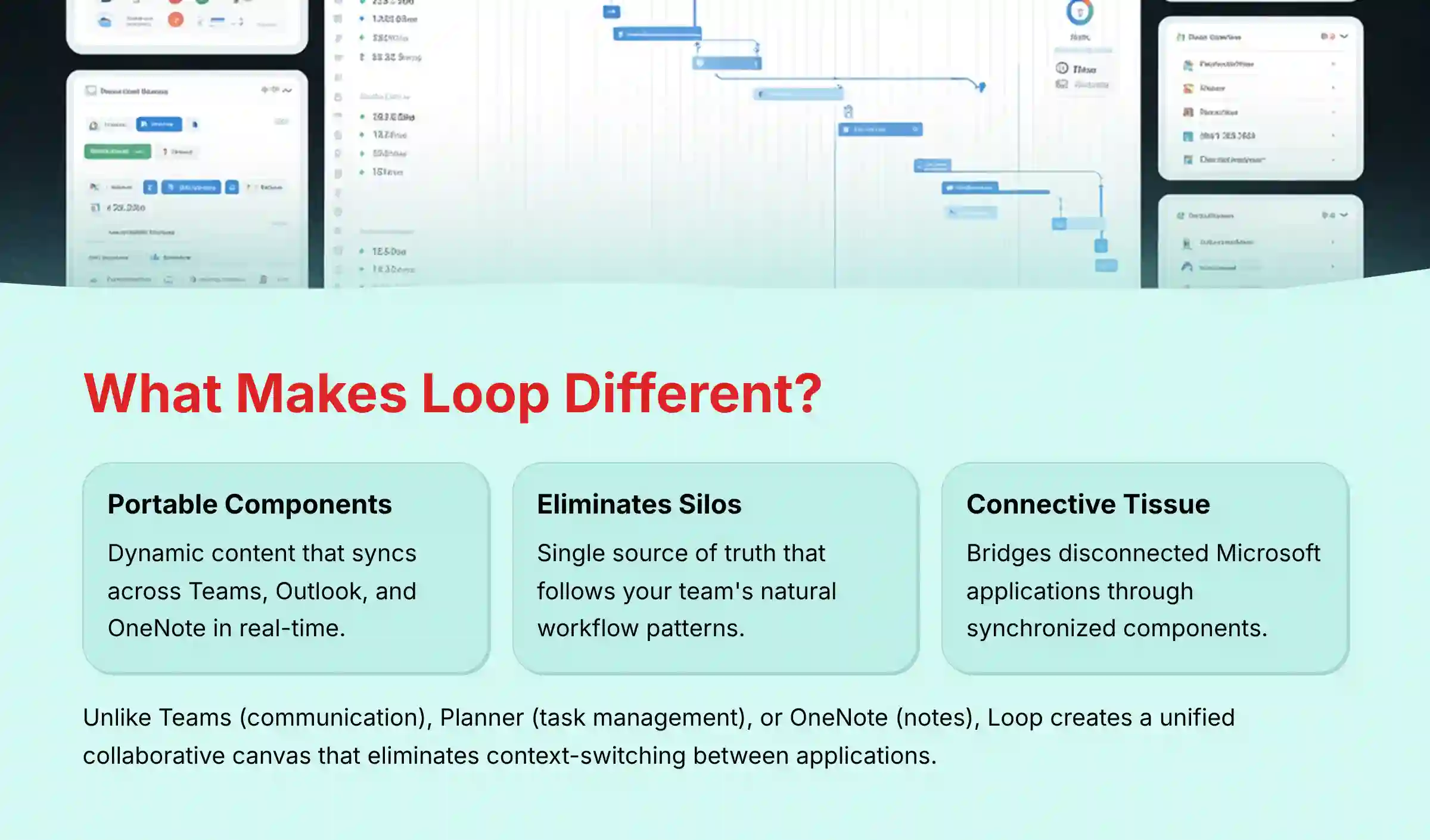
Microsoft Loop is a collaborative workspace application designed to eliminate information silos across the Microsoft 365 ecosystem by introducing portable “Loop Components”—dynamic pieces of content like task lists, tables, or meeting notes that remain synchronized everywhere they’re shared. For project and product managers, Loop serves as the connective tissue between otherwise disconnected Microsoft applications.
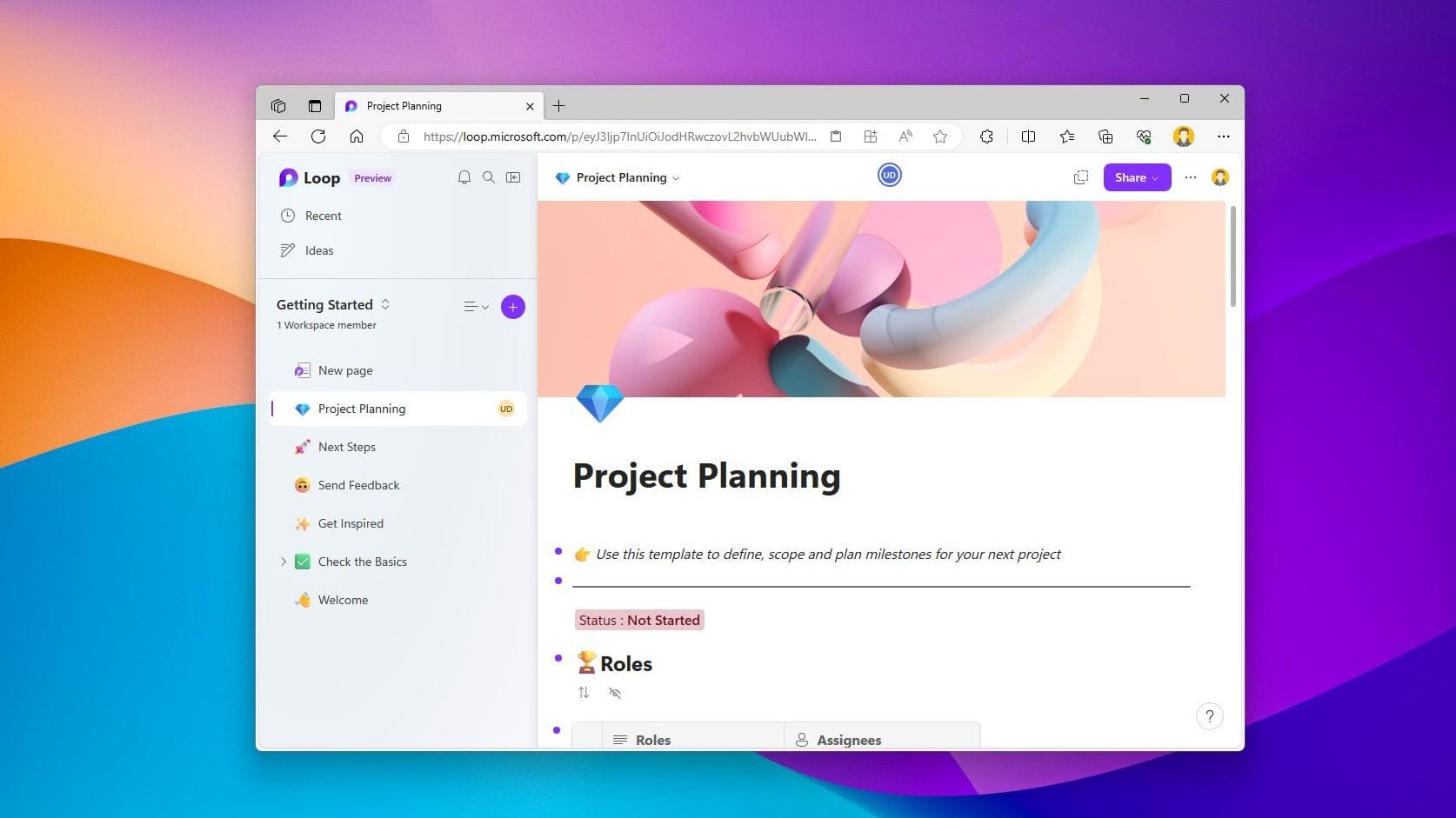
The key distinction lies in Loop’s component-based architecture. While Microsoft Teams acts as your communication hub for chat and meetings, and Microsoft Planner provides dedicated Kanban-style task management, and OneNote serves as a digital notebook for unstructured information, Loop bridges these applications through its portable components. When you create a project task list in Loop, that same component can be embedded in a Teams channel, referenced in an Outlook email, and updated from OneNote—with all instances automatically syncing in real-time.
This eliminates the common project management pain point where critical information becomes trapped in specific applications. Microsoft Loop combines a powerful and flexible canvas with portable components that move freely and stay in sync across applications — enabling teams to think, plan, and create together. For project managers, this means creating a single source of truth that follows your team’s natural workflow patterns rather than forcing them to constantly context-switch between different Microsoft applications to find the information they need.
To explore more about Loop’s capabilities and how it fits into your Microsoft 365 environment, check out our comprehensive MS Loop Overview and Features guide.
Is Microsoft Loop included in our company’s Microsoft 365 subscription?
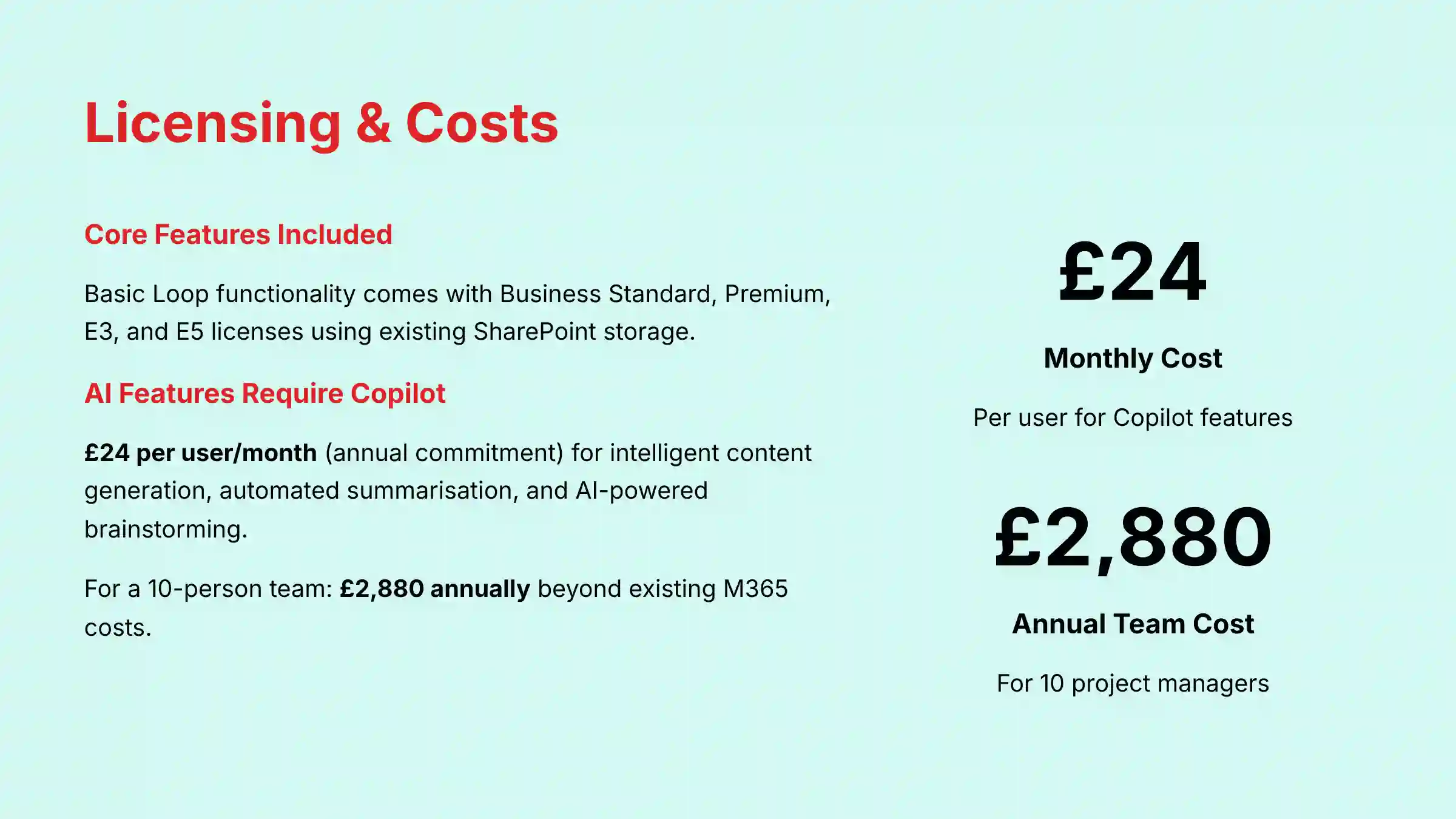
The core Microsoft Loop functionality is included in most business-grade Microsoft 365 subscriptions, including Business Standard, Business Premium, E3, and E5 licenses. This includes creating Loop workspaces, pages, and components, as well as sharing them across Teams, Outlook, and other supported Microsoft applications. Your Loop workspaces utilize your organization’s existing SharePoint Online storage allocation.
However, the advanced AI-powered features require Microsoft 365 Copilot, which is a separate paid add-on. Copilot for Microsoft 365 – $30 per month per user (annual commitment required). Designed for business and enterprise customers. Deep integration into Teams, Word, Excel, Outlook, and PowerPoint. Enterprise-grade security, compliance, and management features.
This pricing distinction is critical for project management teams evaluating Loop’s total cost of ownership. While your team can immediately start using Loop’s collaborative features for project documentation and task tracking with your existing M365 license, accessing the intelligent content generation, automated summarization, and AI-powered brainstorming capabilities requires the additional Copilot investment. For a team of 10 project managers, this means an additional $3,600 annually beyond your existing Microsoft 365 costs to unlock Loop’s full AI potential for project management workflows.
What are the core AI features in Microsoft Loop powered by Copilot for project management?
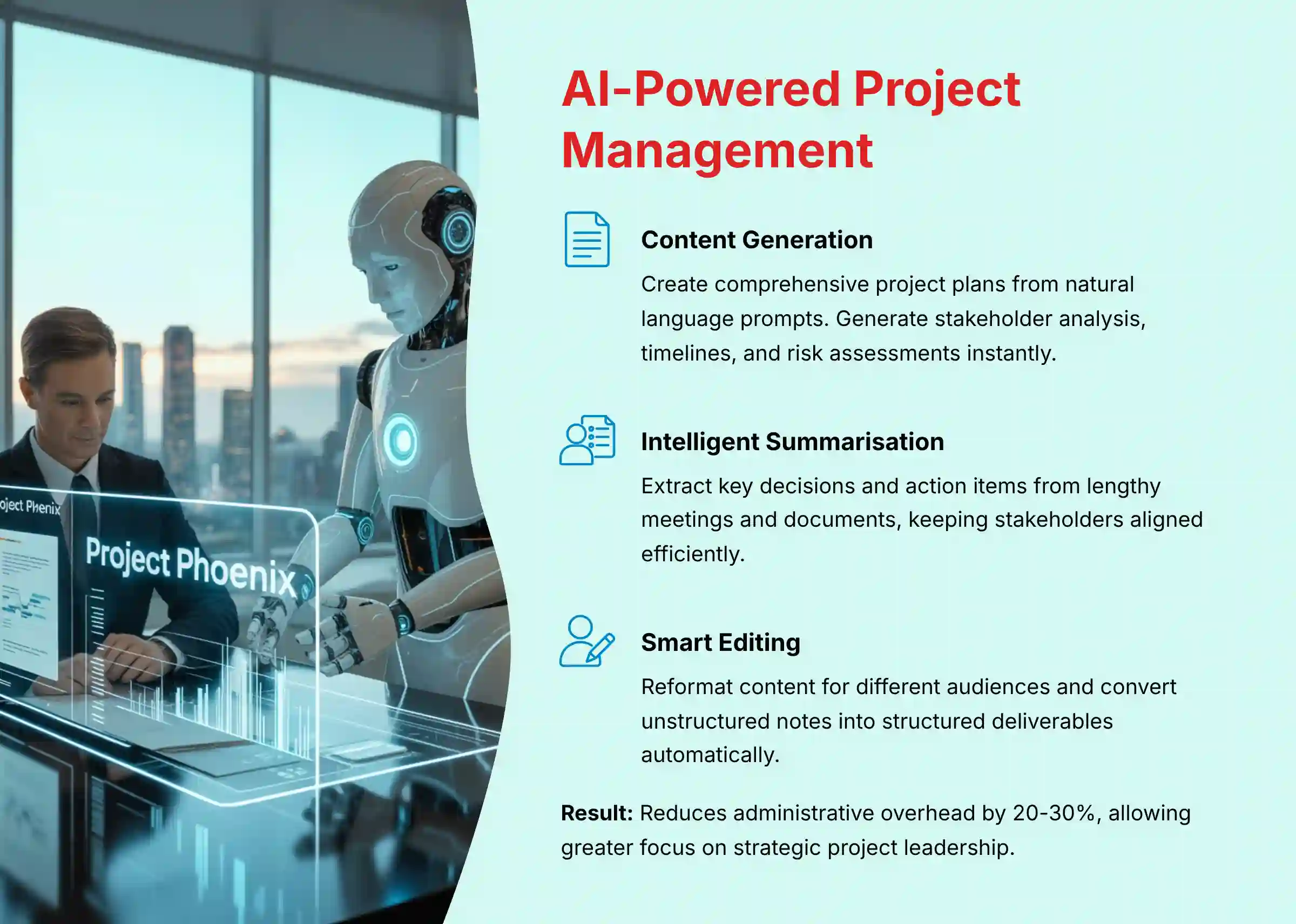
Copilot in Microsoft Loop transforms project management from reactive documentation to proactive intelligence. The AI features fall into three categories that directly address common project management challenges: content generation, summarization, and workflow optimization.
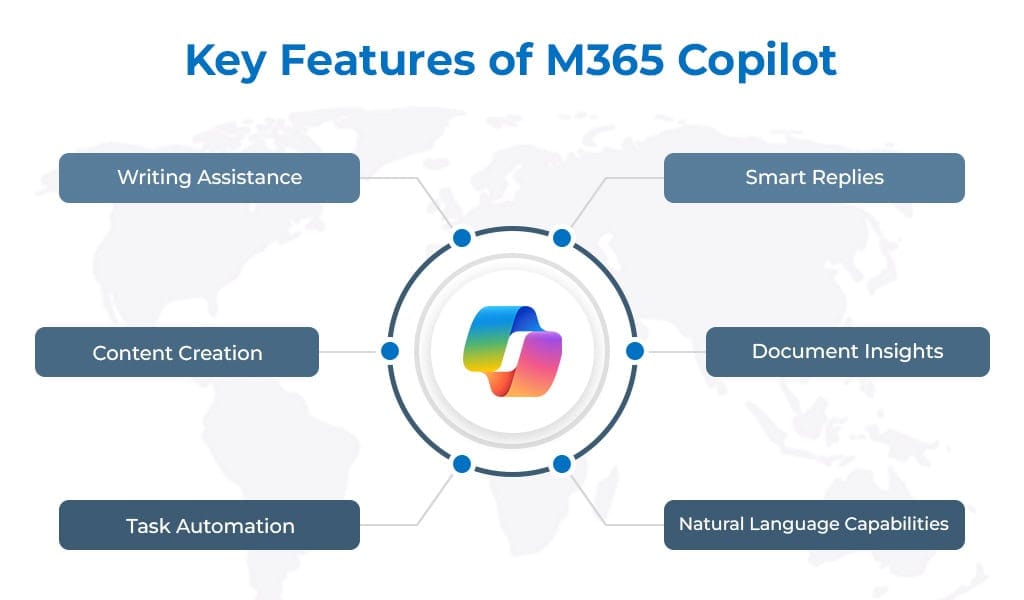
Content generation capabilities allow project managers to rapidly create structured project artifacts from natural language prompts. You can input “Create a go-to-market plan for a B2B SaaS product launch” and Copilot will generate a comprehensive page structure including stakeholder analysis, timeline milestones, risk assessment, and success metrics. This eliminates the blank page problem and provides immediately actionable first drafts that teams can refine collaboratively.
The summarization features are particularly powerful for managing information overload. Copilot can digest lengthy meeting notes, requirements documents, or team discussions and extract key decisions, action items, and next steps. This capability is invaluable for keeping stakeholders aligned without requiring them to consume every detail of project communications.
Smart editing assistance ensures consistency across all project documentation. Copilot can reformat content for different audiences (executive summaries versus detailed technical specifications), adjust tone for various stakeholders, and convert unstructured notes into structured project deliverables. These features collectively reduce the administrative overhead that often consumes 20-30% of a project manager’s time, allowing greater focus on strategic project leadership and stakeholder management.
For detailed insights into Loop’s competitive positioning and comprehensive analysis, explore our in-depth MS Loop Review.
Microsoft Loop vs. Notion: Which is better for a product team’s knowledge base?
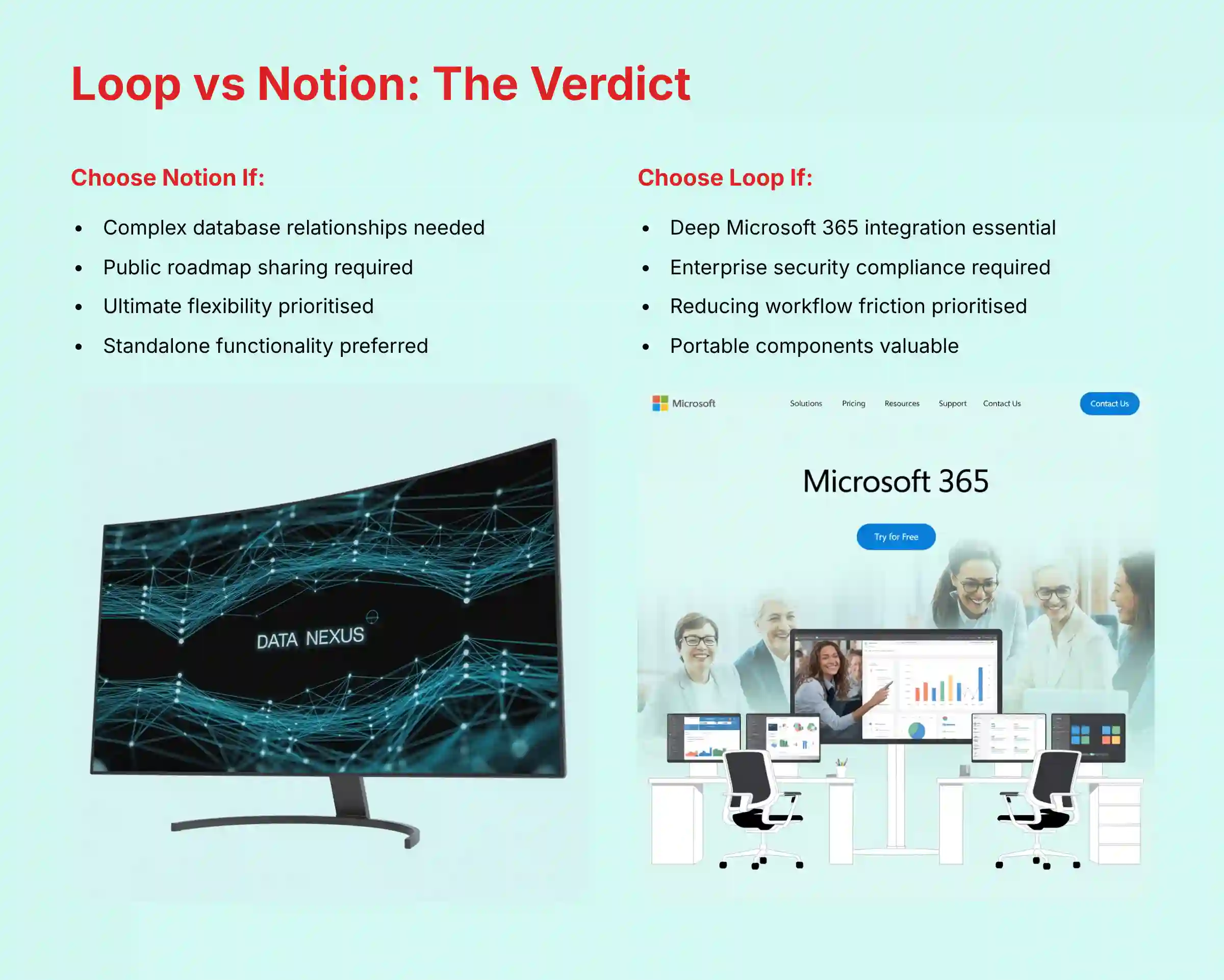
The choice between Microsoft Loop and Notion depends primarily on your organization’s existing technology ecosystem and specific knowledge management requirements. Neither tool is universally superior; they serve different architectural philosophies and user priorities.
Notion excels at creating sophisticated, interconnected knowledge bases through its powerful database functionality. It allows product teams to build complex relationships between user research, feature specifications, and development tasks through customizable database views, advanced filtering, and formula-based calculations. Teams requiring granular control, complex data relationships, and public-facing documentation capabilities will find Notion’s flexibility advantageous. Its web-native design also makes external collaboration and public roadmap sharing more straightforward.
Microsoft Loop’s primary strength lies in seamless integration within the Microsoft 365 ecosystem. For product teams already using Teams for collaboration, Outlook for communication, and SharePoint for document management, Loop provides the path of least resistance. Its killer feature—portable Loop Components that remain synchronized across multiple Microsoft applications—eliminates the context switching that typically fragments product team workflows.
Loop inherits Microsoft’s enterprise-grade security, compliance, and data governance features, which is often a deciding factor for larger organizations with strict data handling requirements. Choose Notion if your team prioritizes ultimate flexibility and best-of-breed standalone functionality. Choose Microsoft Loop if your team values deep Microsoft 365 integration, enterprise security compliance, and reducing workflow friction within your existing Microsoft-centric environment.
If you’re evaluating alternatives beyond these two platforms, our comprehensive guide to MS Loop Top Alternatives and Competitors provides detailed comparisons with other leading solutions.
Can Microsoft Loop realistically replace dedicated PM tools like Jira, Asana, or Monday.com?
Microsoft Loop should not be considered a direct replacement for comprehensive project management platforms like Jira, Asana, or Monday.com, particularly for teams with complex, mature project management processes. Attempting to force Loop into this role will likely result in significant workflow limitations and team frustration.
Dedicated project management tools offer specialized capabilities that Loop currently lacks:
- Advanced workflow automation with sophisticated trigger-based rules
- Granular reporting and analytics for tracking team velocity and project health
- Deep integrations with development tools and business systems
- Scalable features for managing large project portfolios with complex dependencies and resource allocation requirements
The most effective approach is positioning Loop as a collaborative front-end that complements your existing project management infrastructure. Loop excels at the ideation, planning, and communication phases of project work—areas where its flexible documentation, real-time collaboration, and AI-powered content generation provide significant value. Teams can use Loop pages to:
- Brainstorm features and conduct stakeholder meetings
- Outline requirements and maintain living project documentation
- Create meeting notes that sync across Microsoft applications
- Generate content summaries and action items with AI assistance
This complementary approach leverages Loop’s strengths in collaborative content creation and cross-application integration while maintaining the robust project governance and tracking capabilities that specialized tools provide. The key is identifying specific workflow friction points—such as scattered meeting notes or disconnected stakeholder communications—and using Loop’s portable components to solve those particular problems rather than attempting to replicate your entire project management system.
What are the current limitations of Microsoft Loop for advanced project management?
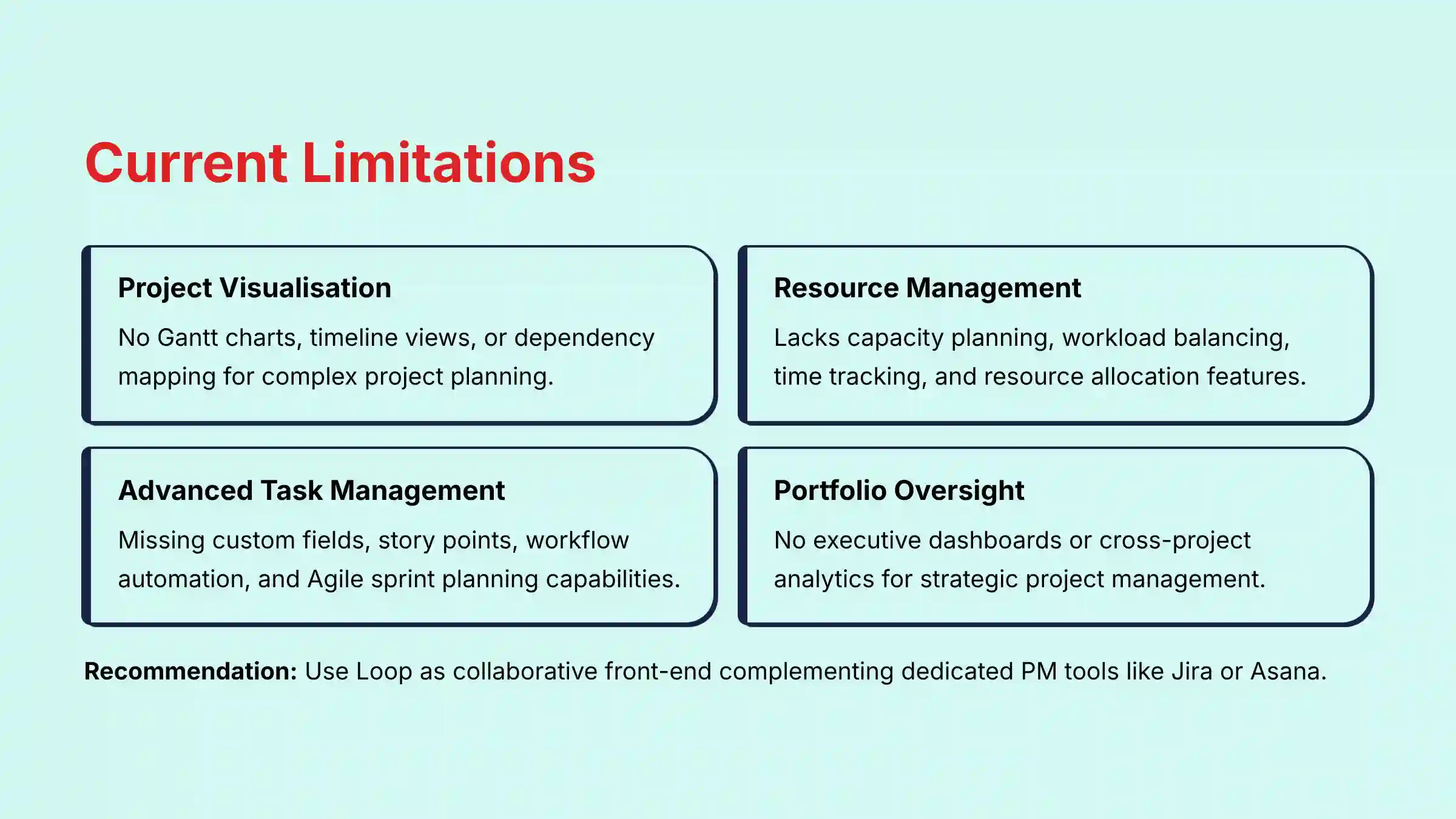
While Microsoft Loop provides excellent collaborative capabilities, it has several critical limitations that prevent it from serving as a standalone solution for advanced project management workflows. Understanding these gaps is essential for making informed decisions about tool integration and workflow design.
Loop lacks fundamental project visualization tools such as Gantt charts, timeline views, and dependency mapping. This makes it unsuitable for planning complex projects with interconnected tasks and critical path analysis. Project managers cannot easily visualize how delays in one workstream will impact overall project deliverables or identify resource conflicts across multiple concurrent projects.
Resource management capabilities are essentially non-existent in Loop. There are no built-in features for:
- Capacity planning and workload balancing
- Time tracking and billable hours management
- Resource allocation optimization
- Team member availability scheduling
The task management functionality, while useful for simple to-do lists, lacks the sophistication required for complex project workflows. Loop’s task components don’t support custom fields, story points, advanced workflow states, or automated task progression rules. Notification systems are basic, and there’s no native support for sprint planning, burndown tracking, or velocity measurement that Agile teams require.
Portfolio-level visibility is another significant gap. Loop operates at the workspace and page level without providing executive dashboards or cross-project analytics. Project managers cannot generate portfolio health reports, resource utilization summaries, or comparative performance metrics across multiple projects, which are essential for strategic project oversight and organizational planning.
How should I structure a Microsoft Loop workspace for a large, multi-phase project?
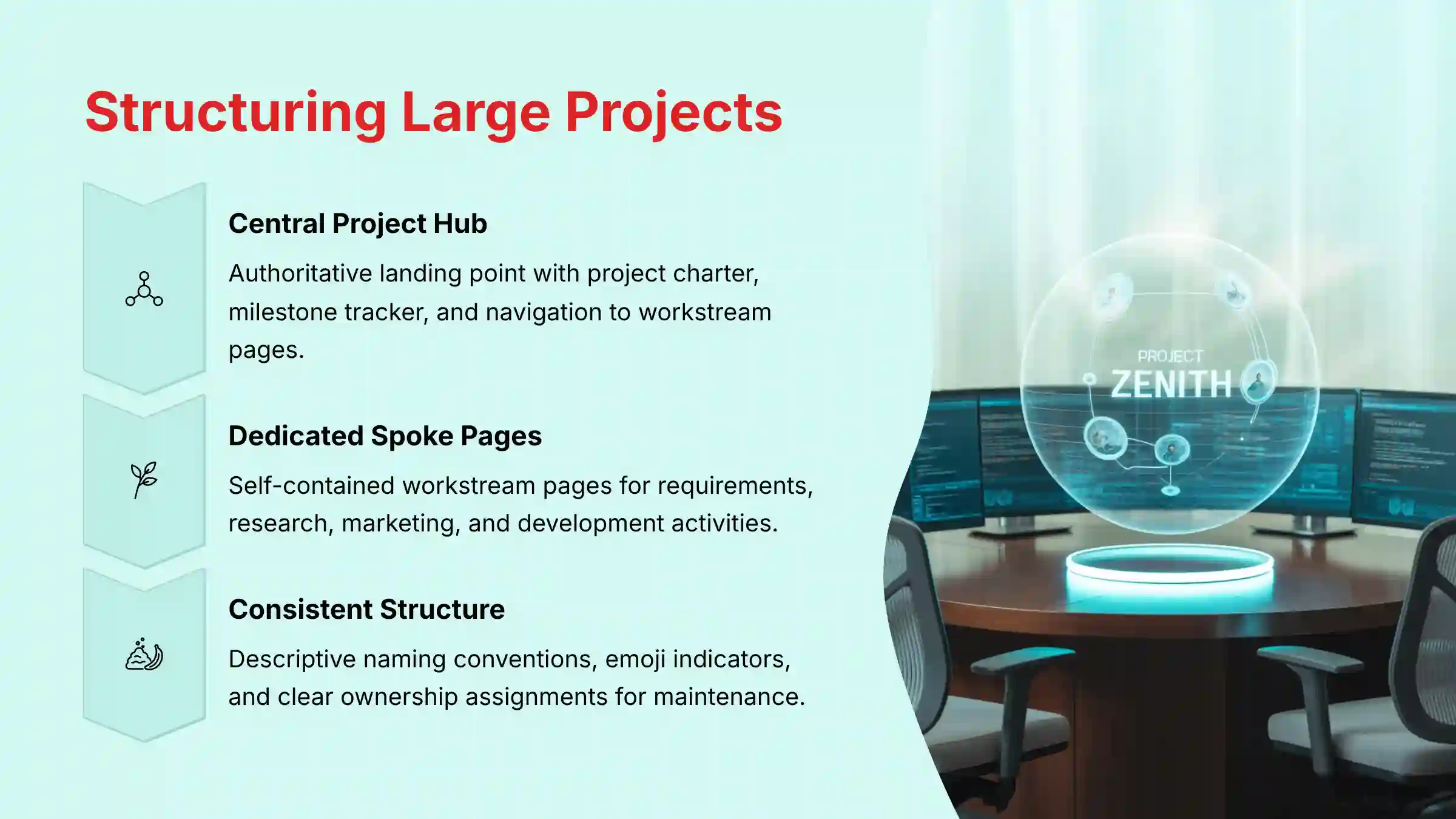
Structuring a Loop workspace effectively requires a systematic approach that prevents information chaos while supporting both high-level oversight and detailed execution. The most successful large project structures follow a “Hub and Spoke” model that provides clear navigation paths and maintains information hierarchy.
Create a central “Project Hub” page that serves as the authoritative landing point for all stakeholders. This hub should contain high-level project information without overwhelming detail:
- A project charter component summarizing goals, scope, and key stakeholders
- A master milestone tracker showing only critical deliverables and their current status
- A structured navigation table linking to specialized workstream pages
This hub becomes your project’s “dashboard” that executives and cross-functional stakeholders can quickly scan for project health.
Design dedicated spoke pages for each major workstream or functional area. Examples include:
- “Product Requirements & Technical Specifications”
- “User Research & Customer Feedback”
- “Marketing & Go-to-Market Planning”
- “Development & Quality Assurance”
Each spoke page should be self-contained with its own context, reducing cognitive load for team members who only need to focus on their specific area of responsibility.
Implement consistent naming conventions and visual organization. Use descriptive prefixes for pages (e.g., “[Marketing] Campaign Asset Development”) and emoji indicators for quick visual scanning (📋 meeting notes, 🎯 deliverables, 📚 reference materials). Create template structures that can be duplicated for similar project types, dramatically reducing setup time for future initiatives.
Most importantly, establish clear ownership and maintenance responsibilities for each page. Assign specific team members to keep pages current and relevant, preventing the common problem of outdated information undermining stakeholder trust and project clarity.
For practical implementation guidance and real-world examples, our detailed MS Loop Tutorials and Usecase resource provides step-by-step instructions for setting up effective project structures.
How reliable is Copilot’s AI in Microsoft Loop for summarizing meetings and generating project tasks?
Copilot’s reliability in Microsoft Loop varies significantly based on the quality and structure of source information, requiring careful evaluation and human oversight rather than blind trust in AI-generated outputs. Understanding these limitations is crucial for project managers who need accurate, actionable project artifacts.
When provided with well-structured input—meeting notes with clear headings, explicit action items, and consistent formatting—Copilot can accurately distill lengthy discussions into concise summaries and generate meaningful task lists with appropriate ownership assignments. This can save project managers 15-30 minutes per meeting in documentation overhead, allowing more time for strategic project activities.
However, reliability decreases substantially with ambiguous or poorly organized source material. If meeting notes consist of unstructured conversation streams without clear decision points, Copilot may generate summaries that miss critical nuances or create action items that weren’t actually agreed upon. The AI can also struggle with highly technical discussions or politically sensitive topics where context and subtext are crucial for accurate interpretation.
The most significant risk is the “polished presentation” problem—Copilot can transform inaccurate or incomplete source information into professionally formatted, confident-sounding summaries that appear authoritative but contain critical errors. Project managers must treat Copilot as an intelligent first-draft generator rather than a definitive source of truth.
Best practices include:
- Always validating AI outputs against source material
- Using structured input formats (explicit headings for “Decisions,” “Action Items,” “Risks”)
- Having meeting participants review AI-generated summaries before distribution to stakeholders
- Maintaining human oversight for accuracy and accountability
The goal is leveraging AI to accelerate documentation while maintaining human oversight for accuracy and accountability.
How can I migrate existing project documentation from Confluence or Google Docs into Microsoft Loop?
Migrating existing project documentation to Microsoft Loop requires a strategic, phased approach rather than attempting wholesale content transfer. Microsoft does not provide automated migration tools from platforms like Confluence or Google Docs, making the process largely manual and requiring careful planning to avoid disrupting active project workflows.
The primary migration method is selective manual copy-and-paste, but this approach has significant limitations. Complex formatting, embedded macros, internal cross-references, and attached files typically don’t transfer cleanly, requiring manual reconstruction. For teams with extensive documentation repositories, this process can be prohibitively time-intensive and may introduce errors or omissions.
A more practical approach involves implementing a hybrid strategy:
- Conduct a comprehensive audit of existing documentation to identify what remains actively relevant versus what can be archived
- Prioritize migrating only high-value, frequently accessed content such as current project charters, active meeting notes, and ongoing stakeholder communications
- Leave historical documentation in its original location as an archive while creating all new project artifacts in Loop
- Create clear cross-references between systems during the transition period
This hybrid model allows teams to realize Loop’s benefits for new work without the overhead of wholesale migration. Over time, as older projects conclude and archived documentation becomes less relevant, the reliance on legacy systems naturally diminishes.
Consider establishing team agreements about which platform serves as the authoritative source for different types of project information to prevent confusion and version control issues.
What are the integration capabilities of Microsoft Loop with non-Microsoft tools like Jira, Figma, and GitHub?
Microsoft Loop’s integration landscape has evolved significantly, with native support for key third-party tools, though limitations remain compared to specialized integration platforms. You can now bring your Jira issues into Loop for super easy project tracking. No need to switch between apps! This represents a substantial improvement from Loop’s initial release when integrations were limited to simple hyperlinks.
The Jira integration functions as a dynamic Loop Component that automatically synchronizes with Atlassian’s platform. When you paste a Jira issue URL into a Loop page, it creates an interactive component displaying live ticket information including status, assignee, priority, and summary details. This provides contextual visibility into development work without requiring constant context switching between platforms. Enhance your productivity with the Jira Cloud plugin for Microsoft Copilot. Use AI to track tasks, resolve issues, and manage projects inside Microsoft Teams.
However, significant gaps remain for other essential project management tools:
- Figma: No native integration beyond static hyperlinks
- GitHub: Limited to URL sharing without dynamic content display
- Salesforce: No direct integration capabilities
- Other specialized platforms: Generally limited to basic link sharing
This limitation means teams using best-of-breed toolchains cannot achieve the same level of contextual information sharing for design reviews, code repository updates, or customer relationship data.
The integration architecture also raises important data governance considerations. When third-party tool information is rendered within Loop components, it creates data flow relationships that must be evaluated against organizational security policies and compliance requirements. Teams should verify that these integrations meet their data handling standards, particularly for sensitive project information or regulated industries where data residency and access controls are critical compliance factors.
What security and compliance considerations should project teams evaluate before implementing Microsoft Loop?
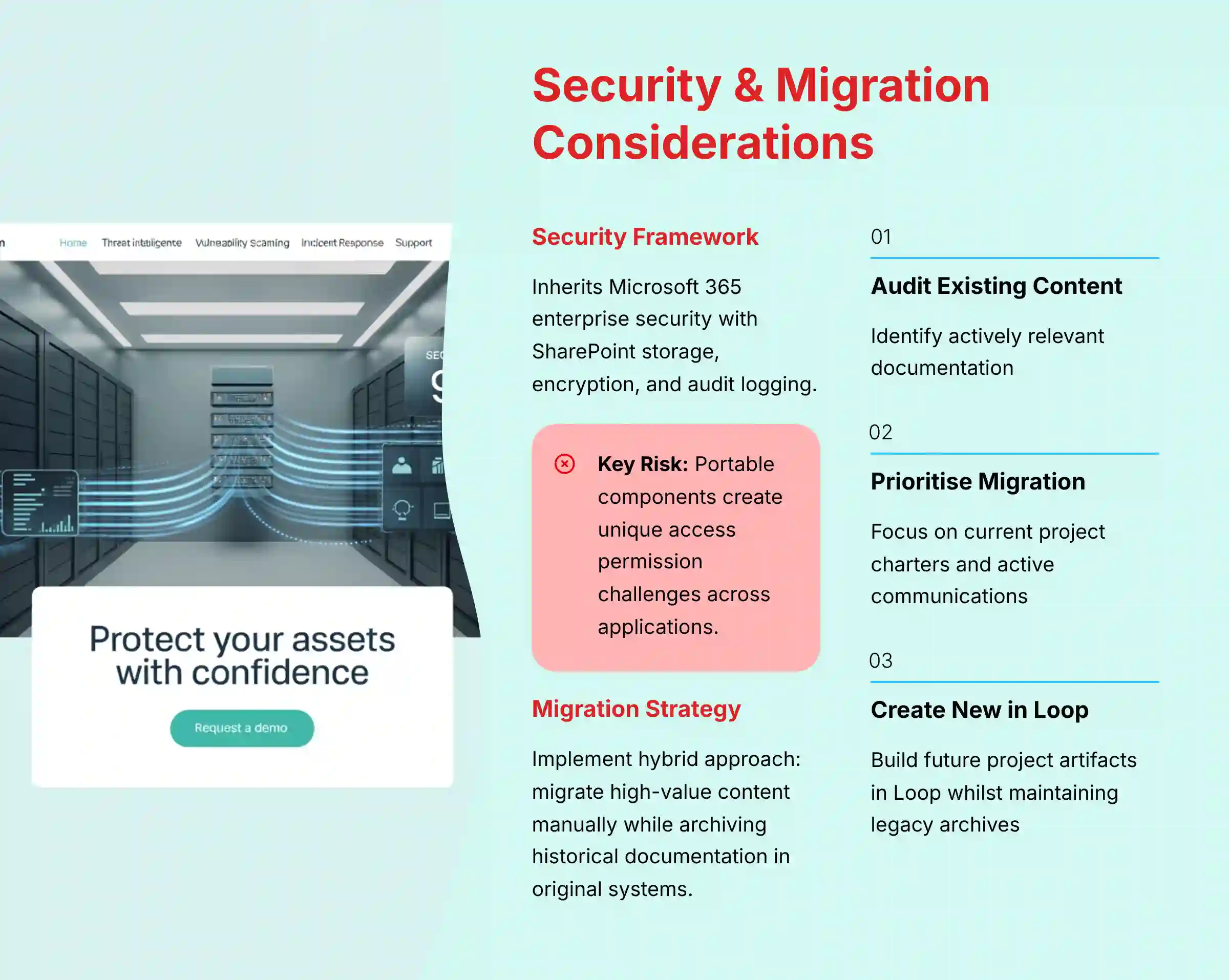
Security and compliance evaluation for Microsoft Loop requires understanding both its data handling architecture and integration implications for project management workflows. Loop inherits Microsoft 365’s enterprise security framework, but project teams must assess specific risks related to collaborative data sharing and third-party integrations.
Loop workspaces utilize SharePoint Online as the underlying storage platform, which means all content is subject to your organization’s existing Microsoft 365 data governance policies, retention rules, and geographic data residency requirements. This inheritance provides enterprise-grade encryption, access controls, and audit logging capabilities that meet most organizational security standards. However, the portable nature of Loop Components creates unique considerations—when components are shared across multiple Microsoft applications, access permissions must be carefully managed to prevent unintended information exposure.
Third-party integrations introduce additional complexity. When Loop displays information from external systems like Jira or Trello, that data may be cached within the Microsoft environment, creating potential gaps in data governance coverage. Organizations with strict data classification requirements must verify that external tool data maintains appropriate protection levels when rendered within Loop components.
Project teams should also evaluate the collaboration model’s compliance implications. Loop’s real-time, multi-user editing capabilities can make it challenging to maintain traditional document control and approval workflows required by regulated industries. Teams may need to establish clear guidelines about when Loop’s collaborative editing is appropriate versus when formal document management processes must be followed.
Administrative oversight becomes crucial—organizations should designate Loop workspace administrators who understand both the platform’s capabilities and the organization’s compliance requirements to ensure appropriate usage patterns and data handling practices.
For comprehensive answers to additional questions and implementation guidance, visit our complete MS Loop FAQs resource.


Leave a Reply