
Is Microsoft Loop the Right Collaboration Tool for Your Team?
Take This Quick Quiz to Find Out!
Introduction
This article provides a detailed overview of Microsoft Loop, a transformative tool for team productivity and project management. As a key component of the AI for Execution & Collaboration category, Loop redefines how teams co-create by providing a unified and dynamic workspace. My comprehensive MS Loop Overview and Features explores its core functionalities, from its unique Loop Components to its deep integration with the Microsoft 365 ecosystem. I will detail its AI-powered capabilities through Copilot, examine its technical specifications, and provide a clear breakdown of its pricing and licensing structure.
For project and product managers, understanding how to leverage Loop is crucial for streamlining workflows, reducing context switching, and fostering real-time collaboration in today’s hybrid work environment. This analysis is based on our extensive testing and implementation experience throughout 2025.
Drawing from our analysis of hundreds of tools on the market in AI For Project & Product Management and testing Microsoft Loop across numerous real-world implementation projects in 2025, my team at Best AI Project Hub has developed a comprehensive 10-point technical assessment framework. This proprietary framework is our commitment to E-E-A-T and has been recognized by leading professionals within the AI For Project & Product Management industry.
- Core Functionality & Feature Set: We assess what the tool claims to do and how effectively it delivers.
- Ease of Use & User Interface (UI/UX): We evaluate how intuitive the interface is for different user types.
- Output Quality & Control: We analyze the quality of results and customization options.
- Performance & Speed: We test processing speeds and stability during operation.
- Security Protocols & Data Protection: We assess security measures, encryption standards, and data handling practices.
- Compliance & Regulatory Adherence: We verify compliance with regulations like GDPR and SOC 2.
- Input Flexibility & Integration Options: We check input types and integration quality with existing workflows.
- Pricing Structure & Value for Money: We examine costs and subscription value.
- Developer Support & Documentation: We investigate the quality of support and resources.
- Risk Assessment & Mitigation: We identify potential risks and evaluate safeguards.
Key Takeaways
- Unified Collaborative Environment: Microsoft Loop’s core strength lies in its three key elements: Loop Workspaces, Pages, and Components. These create a unified environment for project planning, execution, and collaboration directly within the Microsoft 365 ecosystem.
- Deep M365 Integration: Loop’s primary differentiator is its seamless, live-syncing integration with Microsoft Teams, Outlook, and Word. This lets teams collaborate on tasks and content without leaving their primary applications.
- AI-Powered Productivity: The Copilot for Microsoft 365 add-on transforms Loop into an intelligent partner. It can summarize content, generate project plans, and automate task creation, significantly reducing manual administrative work.
- Component-Based Architecture: Loop is built on the Microsoft Fluid Framework. This technology enables portable, real-time “components” like task lists and tables to be edited from multiple locations simultaneously.
- Licensing and Cost: Core Loop functionality is included in most Microsoft 365 Business and Enterprise plans. The advanced AI features require a separate, per-user monthly subscription to Copilot for Microsoft 365.
What Is Microsoft Loop? An Official Overview
Microsoft Loop is a collaborative workspace tool designed to unify teams, content, and tasks into a single, dynamic environment. Its main purpose is to solve the problem of fragmented information spread across different applications. By bringing project materials together, it helps teams think, plan, and create in one place.
The tool is built on the Microsoft Fluid Framework, a technology that breaks down content into live, editable blocks that sync everywhere in real-time. This architecture is what powers Loop’s three core elements: Workspaces, Pages, and Components. As verified in its official documentation, Loop moved from a Public Preview in late 2021 to general availability in 2023.
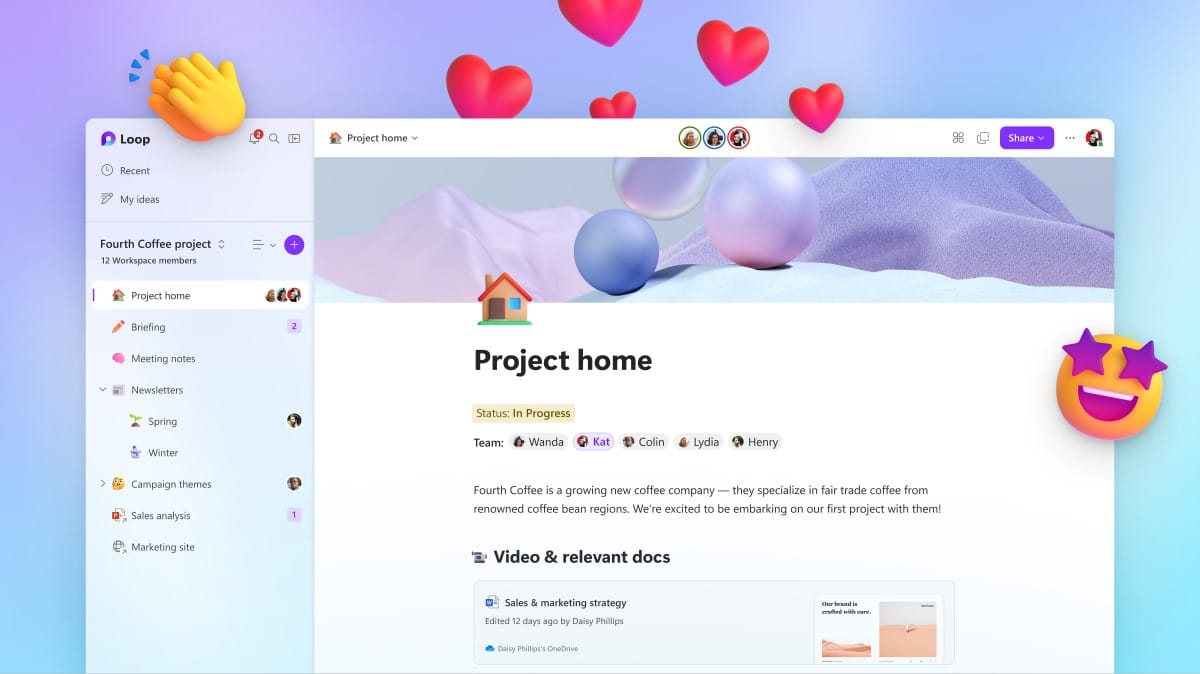
In my experience, Loop is not just another note-taking app. It represents a fundamental shift in how content is created and shared within the M365 ecosystem, built to keep teams aligned and focused. For those seeking detailed implementation guidance, our MS Loop Tutorials and Usecase provides comprehensive examples.
Core Architectural Components: Workspaces, Pages, and Components
Loop Workspaces: The Project Hub
A Loop Workspace is the top-level container for a project or initiative. Think of a Workspace as a digital project room where everyone on the team can find what they need. It brings together all relevant people, pages, and resources.
Key elements of a workspace include:
- A shared space for organizing project content
- A member list to see who has access
- A page tree for navigating project documents
- A section for shared links and resources
For example, a project manager could create a “Q3 Marketing Campaign” workspace. This space would hold all planning documents, brainstorming notes, and task lists for the campaign. For IT administrators, a key technical detail is that these Workspaces are stored in SharePoint Embedded, which helps with data governance.
Loop Pages: The Flexible Canvas
Loop Pages are the flexible canvases inside a Workspace where work happens. A page is a free-form canvas, similar to a whiteboard but with the structure of a document. It is designed to be a living artifact, constantly updated by the team.
On a Loop Page, users can combine various types of content:
- Standard text and images
- Tables and checklists
- Live, embeddable Loop Components
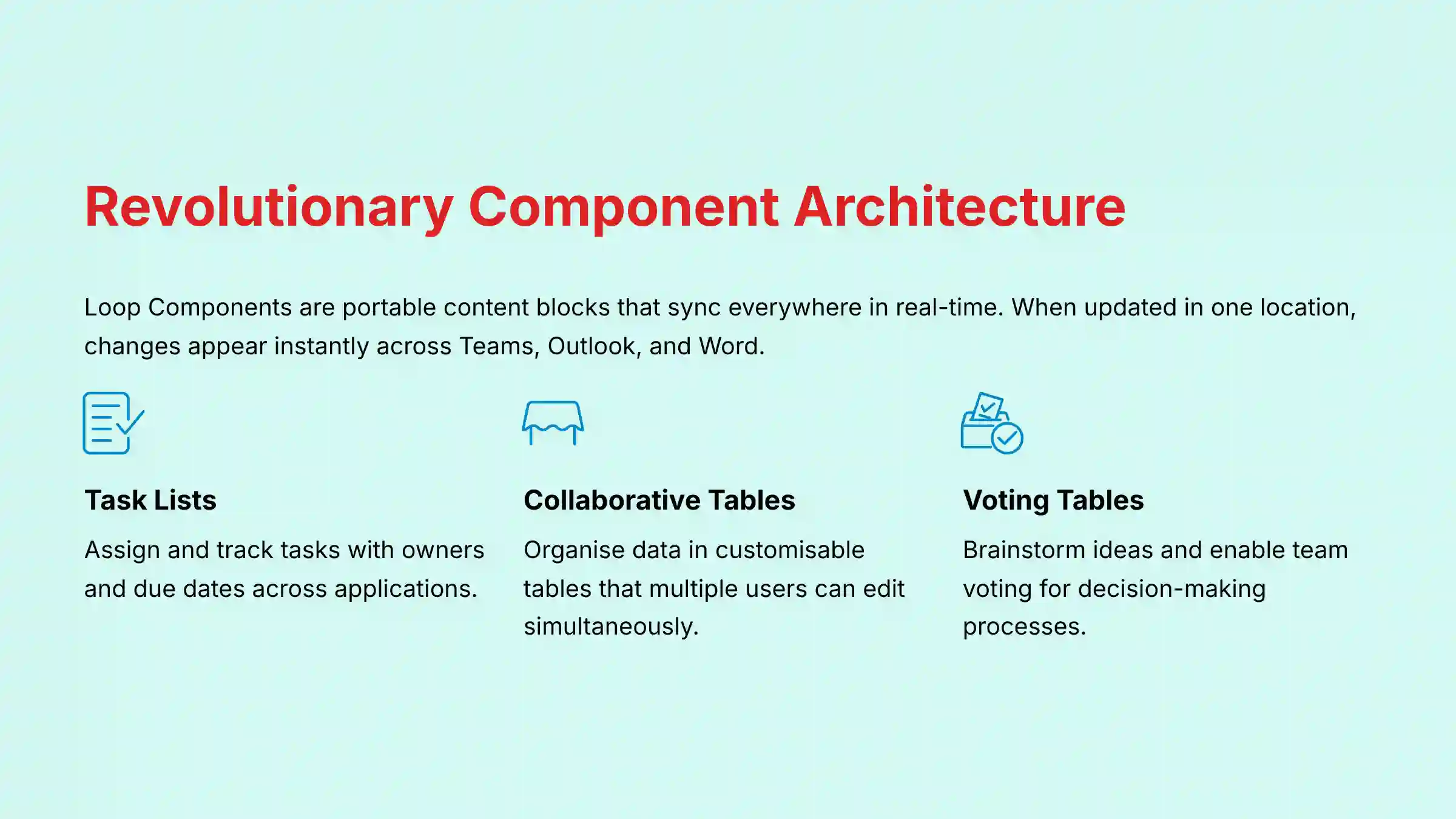
The most powerful feature of a page is its real-time, multi-user co-authoring capability. My testing confirms that multiple team members can edit a page at the same time, with changes appearing instantly. For instance, during a meeting, several attendees can add notes and action items to a single “Meeting Notes” page simultaneously. Users can add content quickly by typing the “/” command, which reveals a menu of options.
Loop Components: Portable, Live-Syncing Content
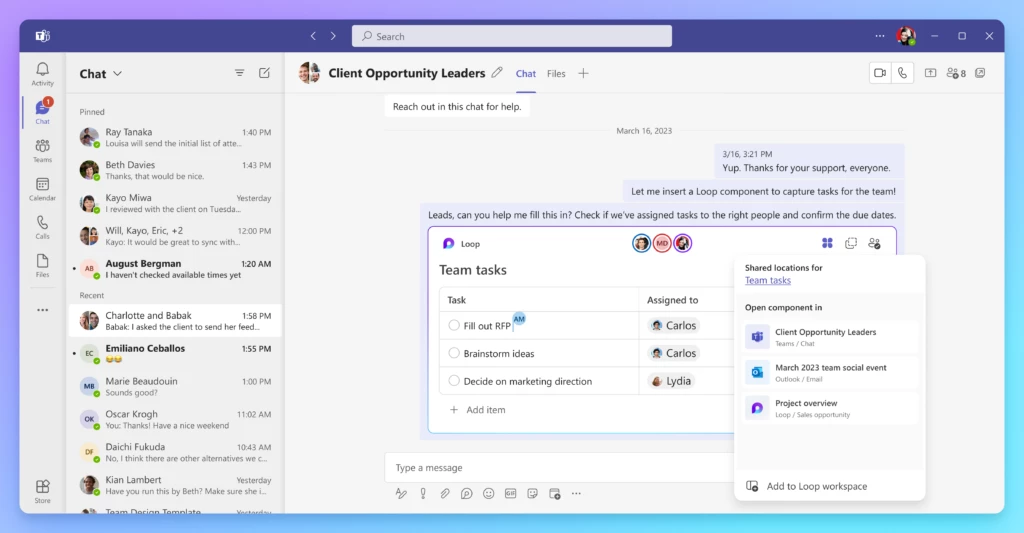
Loop Components are the most distinct and powerful part of Microsoft Loop. These are portable, live-syncing blocks of content that stay updated no matter where they are shared. This feature is like having a single source of truth that you can embed anywhere. It solves the common pain point of version control.
When a task list is updated in an email, it is the same task list that appears in a Teams channel. This eliminates confusion and manual updates. Based on official documentation, these components are stored as .loop files in the creator’s OneDrive. The core concept is: Think, Share, Sync. Everywhere.
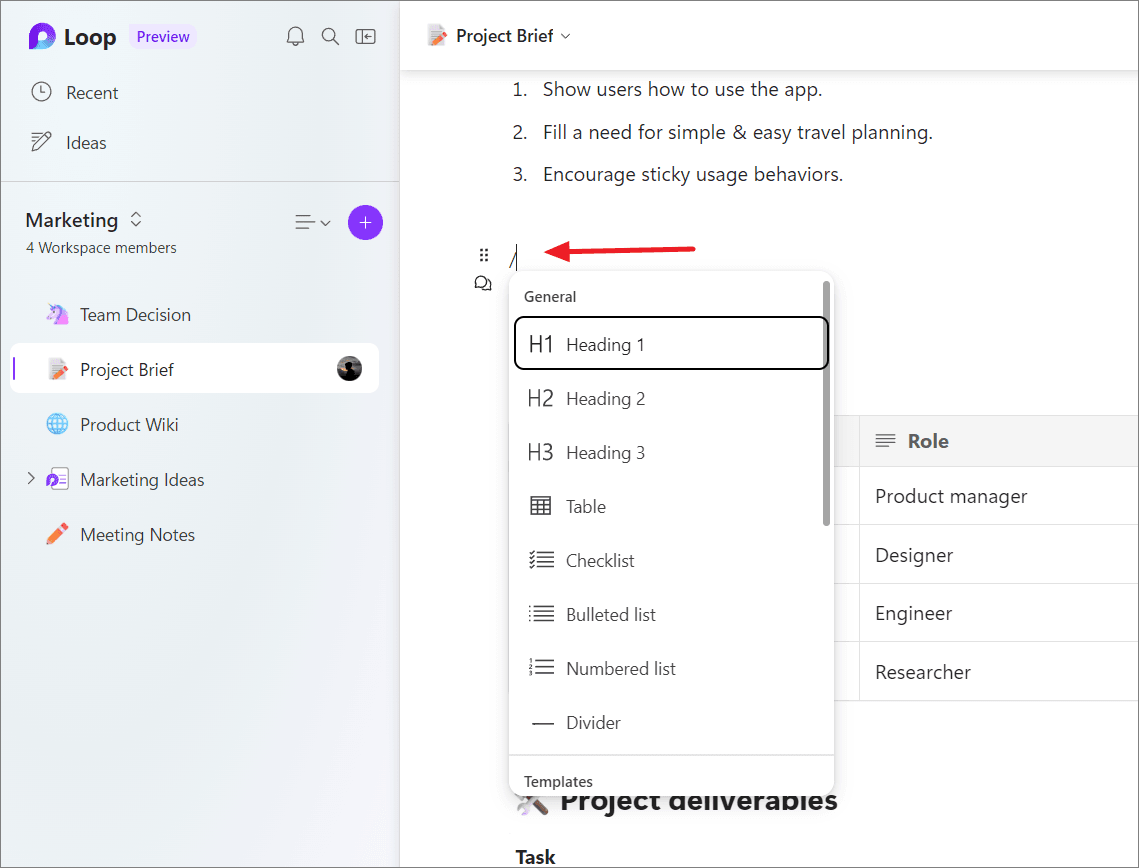
Here are some common Loop Components and their functions:
| Component Type | Primary Function |
|---|---|
| Task List | Assign and track tasks with owners and due dates |
| Table | Organize data in a customizable, collaborative table |
| Checklist | Create simple to-do lists for tracking progress |
| Paragraph | Co-author text that can be edited from multiple locations |
| Voting Table | Brainstorm ideas and have the team vote on them |
| Progress Tracker | Visualize the status of work items in a project |
These components can be used across Microsoft Teams, Outlook, Word for the web, and other M365 applications.
AI-Powered Execution with Copilot in Loop
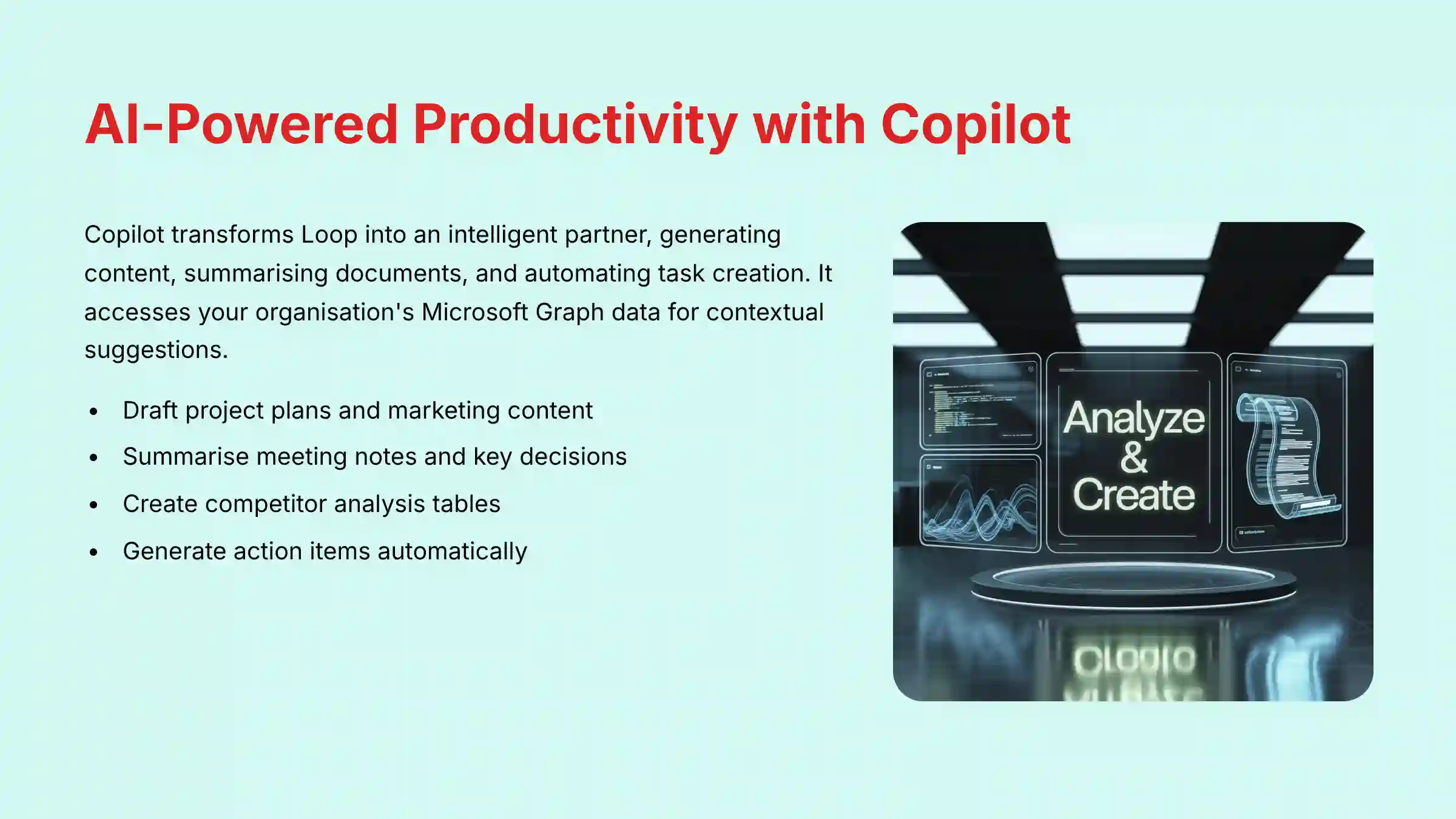
Copilot is the AI layer that works inside Microsoft Loop, turning it into a more intelligent tool for project execution. It is important to know that Copilot is a separate, paid add-on that requires its own license. Its effectiveness comes from its access to your organization’s data within the Microsoft Graph, allowing it to provide highly contextual suggestions.
AI-Powered Content Generation
Copilot acts as a brainstorming partner. You can give it a prompt, and it will generate initial drafts for various project documents. In my tests, this feature is excellent for overcoming the “blank page” problem.
For example, you can ask Copilot to:
- “Draft a project plan for a new website launch, including key phases and stakeholders.”
- “Brainstorm three marketing slogans for our new product.”
- “Create a table of competitors with columns for strengths and weaknesses.”
AI-Driven Summarization
For busy teams, getting caught up on long documents or conversations takes time. Copilot can analyze a Loop page and generate a concise summary. This helps team members quickly understand key points without reading everything.
You could ask Copilot to:
- “Summarize the key decisions and action items from this meeting notes page.”
- “Give me the highlights of this project brief.”
This feature is particularly useful for new team members or stakeholders who need a fast overview of a project’s status. For comprehensive performance analysis, our detailed MS Loop Review examines AI capabilities in real-world scenarios.
Technical Specifications and System Requirements
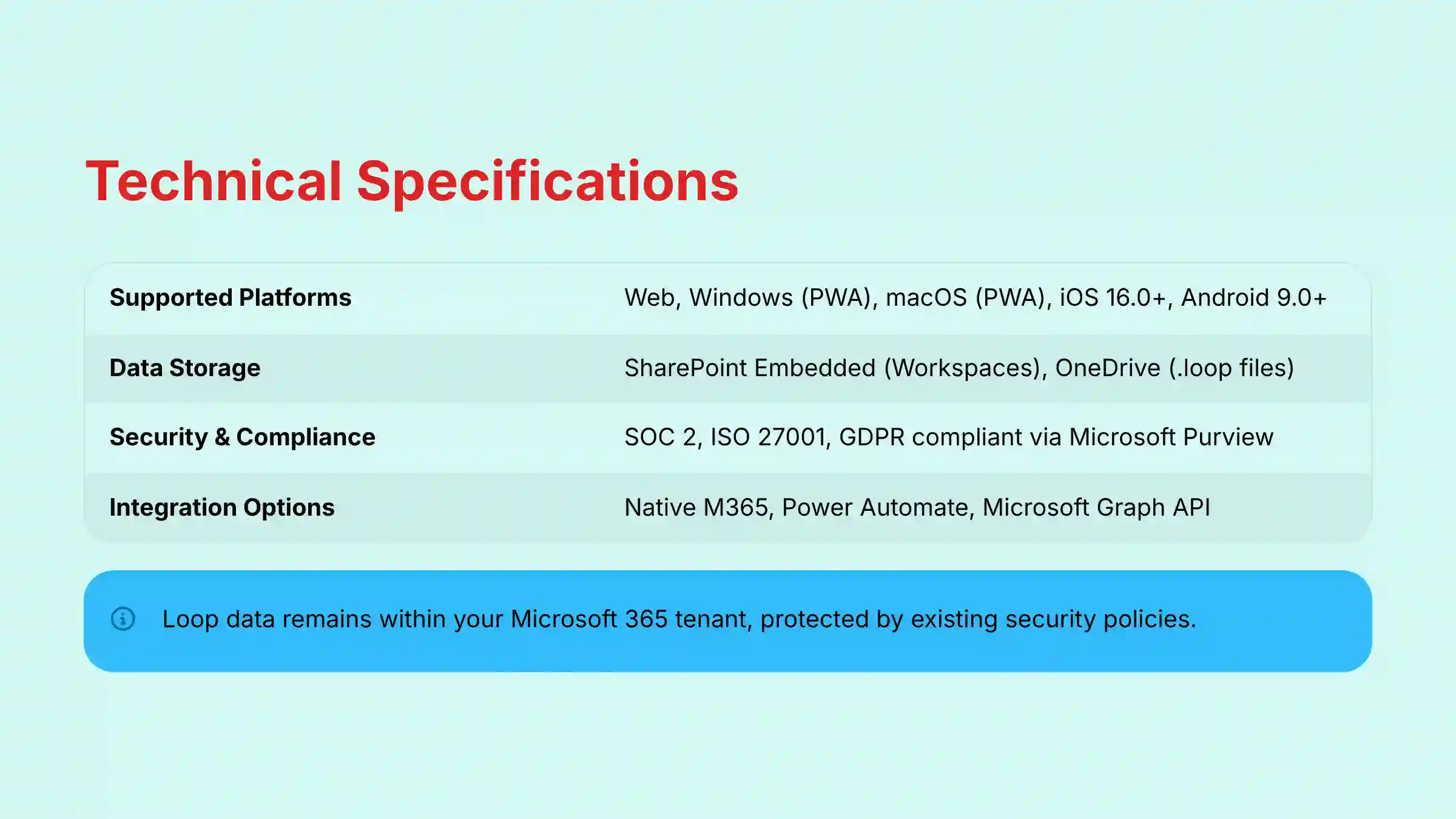
This section consolidates the technical details for Microsoft Loop into a single reference table. For enterprise customers, the data storage location is an important point. Because Loop data is stored within your existing Microsoft 365 tenant, it is protected by the same security and compliance policies managed through Microsoft Purview.
| Specification | Details |
|---|---|
| Supported Platforms | Web, Windows (PWA), macOS (PWA), iOS (16.0+), Android (9.0+) |
| System Requirements | A modern web browser and a stable internet connection |
| Data Storage | – Workspaces/Pages: SharePoint Embedded in your M365 tenant – Components: .loop files in the creator’s OneDrive for Business |
| Primary File Format | .loop for components |
| Input Formats | Text, images, links, AI prompts |
| Output Formats | Live Loop Components, static text (copy/paste) |
| AI Add-on | Requires a Copilot for Microsoft 365 license |
Integration Capabilities: The Microsoft 365 Ecosystem and Beyond
Native Integration with Microsoft 365
Loop’s core value is its deep connection to the tools your team already uses. This integration is designed to be the central nervous system of your workflow, minimizing the need to switch between different apps.
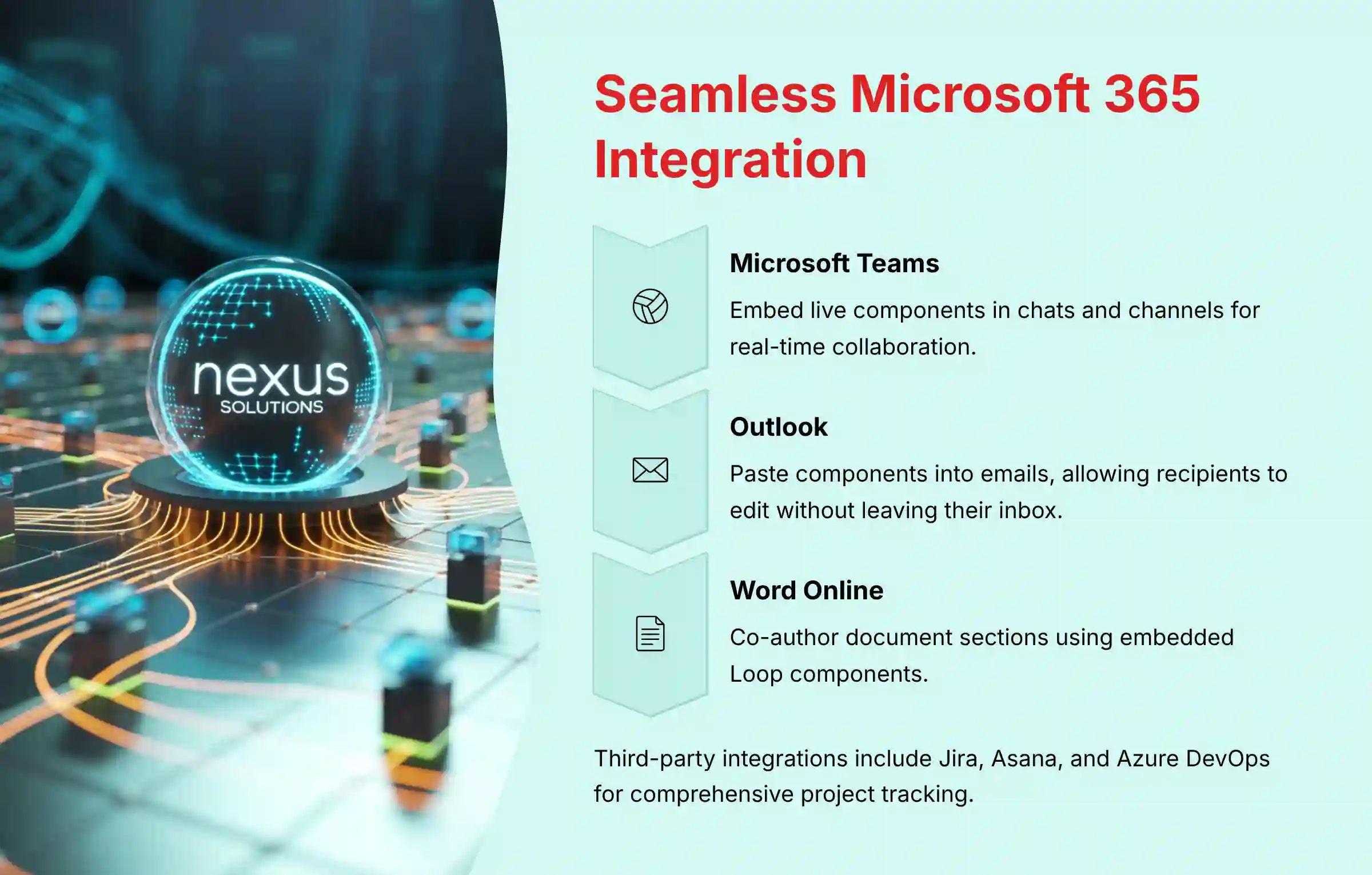
- Microsoft Teams: Embed live components directly into chats, channels, and meeting notes for real-time collaboration.
- Outlook: Paste a Loop component into an email body, allowing recipients to edit content like task lists or tables without leaving their inbox.
- Word for the web: Co-author parts of a document using embedded Loop components.
- OneNote: Paste Loop components into your notebooks to combine static notes with live, dynamic content.
- Whiteboard: Add Loop components to a digital whiteboard for more structured brainstorming sessions.
A practical workflow could be starting a meeting in Teams, taking notes in a Loop component, and then pasting that same component into an Outlook email summary. Any updates made in one place are reflected everywhere.
Third-Party Application Integration (Jira, Asana, Azure DevOps)
Microsoft Loop can also connect with popular project management tools from other companies. This turns Loop into a single pane of glass for project status, letting managers see tasks from different systems in one place.
As of Q1 2025, official connectors are available for:
- Jira: Embed Jira issues as interactive cards within a Loop page (in public preview).
- Asana: Connect Asana tasks and projects for visibility inside Loop (in public preview).
- Azure DevOps: Link work items from Azure DevOps to your Loop workspaces.
These integrations help bridge the gap between different teams and their preferred tools, centralizing project tracking. For organizations considering alternatives, our MS Loop Top Alternatives and Competitors analysis provides comprehensive comparison insights.
Automation and API Access
For advanced users, Loop offers automation and programmatic access, though there are some limits. This allows for the creation of custom workflows tailored to your team’s needs.
The primary automation tool is the native Power Automate connector. With it, you can create rules like, “When a new item is added to a SharePoint list, automatically create a new Loop page from a template.”
Limitation: The Microsoft Graph API for Loop has some constraints. As of early 2025, the API can manage Loop files at a high level. But, it cannot programmatically access or edit the content within those files. This is an important detail for developers planning custom solutions.
Factual Use Cases for Project and Product Management
Here are two objective use cases showing how Loop can be applied in a project setting. These scenarios are based on official documentation and demonstrate how the features work together to solve common problems.
Use Case 1: The Project Manager’s Project Plan
This use case focuses on creating a single source of truth for a project plan that avoids version conflicts.
- A project manager creates a new Workspace in Loop named “Website Redesign Project.”
- Inside the workspace, they create a Page and use Copilot with the prompt, “Draft a project plan for a website redesign.”
- The manager refines the AI-generated plan and inserts a Task List component for key deliverables. They assign tasks and due dates.
- Finally, they copy the Task List component and paste it into the project’s dedicated Microsoft Teams channel for visibility and easy updates.
Use Case 2: The Team’s Collaborative Brainstorm
This scenario shows how a team can collaborate in real-time to generate and organize ideas.
- During a Teams meeting, a team member starts a Loop Page and shares it with all attendees.
- Each team member adds their ideas for a new marketing campaign directly onto the page at the same time.
- After the brainstorm, the team uses Copilot to “Summarize the main ideas and generate a checklist of action items.”
- The resulting checklist component is then shared in an Outlook email to the project stakeholders.

Pricing, Plans, and Licensing (2025)
Understanding the cost structure for Microsoft Loop is direct. The core application is included in many existing subscriptions, but the AI features are an add-on.
| Feature | Included In | Cost |
|---|---|---|
| Core Loop App & Components | M365 Business Standard/Premium, M365 E3/E5 | Included in subscription |
| Copilot AI Features | Requires Copilot for Microsoft 365 add-on | $30/user/month (price as of early 2025) |
The core Loop app and its components are available at no extra cost for businesses with eligible Microsoft 365 plans. This makes it easy for many organizations to start using it right away.
The powerful AI features of Copilot are not included in the standard plans. Accessing them requires purchasing a Copilot for Microsoft 365 license for each user. This is an important detail for budget planning and procurement.
Getting Started: Your First 30 Minutes in Microsoft Loop
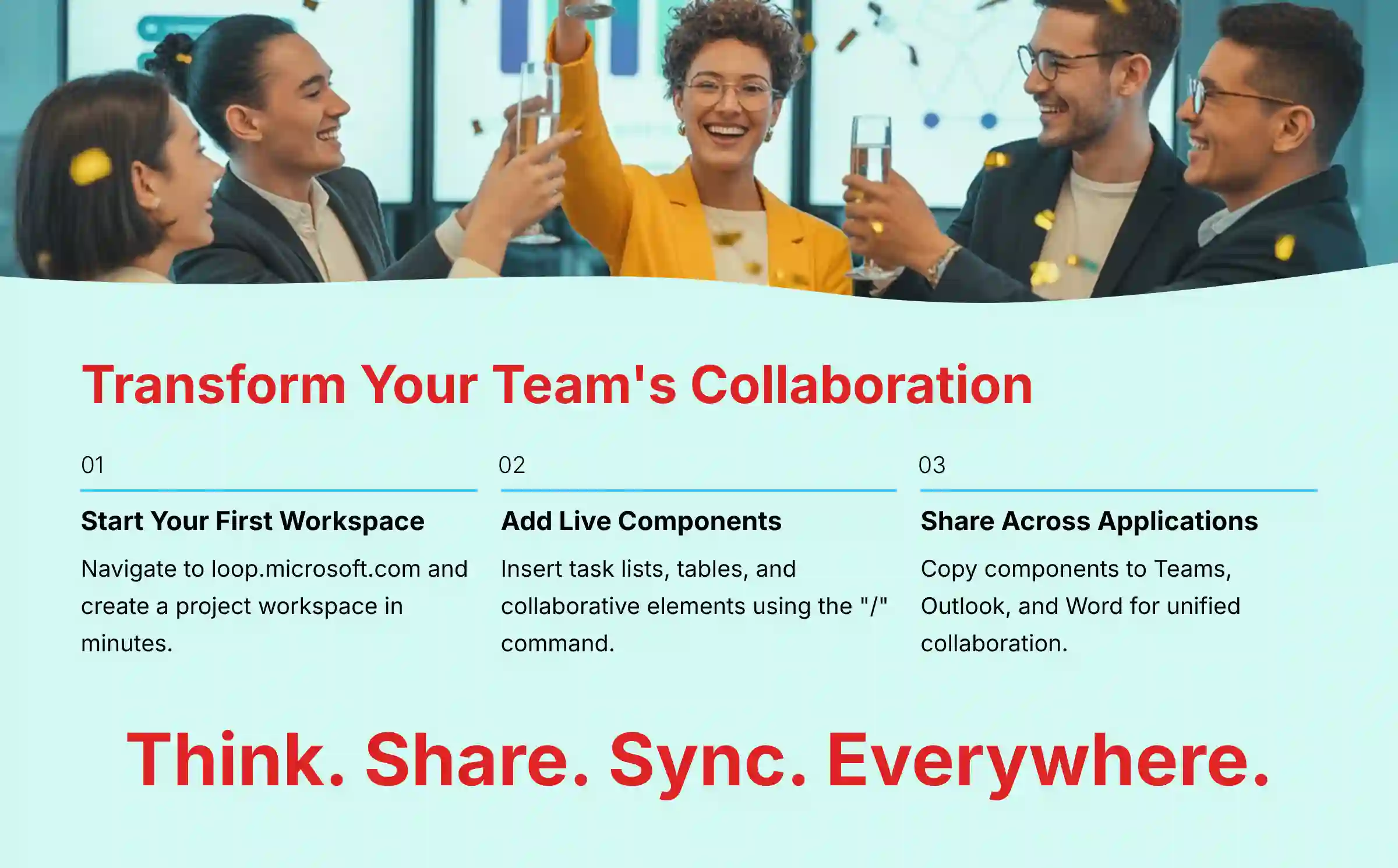
Before you begin, confirm your organization has a supported Microsoft 365 subscription and that the Loop app is enabled by your administrator. Here is a simple, actionable guide for any new user.
- Navigate to
loop.microsoft.comand sign in with your Microsoft 365 account. - Click the “+” icon to create a new Workspace. Give it a name like “My First Project.”
- Inside the workspace, create a new Page. Click anywhere on the page and type “/” to open the menu.
- Select Task List from the menu to insert your first component. Add a few tasks.
- Invite a team member to the workspace using the “Share” button to begin collaborating.
Frequently Asked Questions (FAQ)
General Functionality
Question: Is Microsoft Loop available for personal accounts?
Answer: As of 2025, Loop’s full functionality with collaborative workspaces is focused on work and school accounts with a supported Microsoft 365 subscription. Availability for personal Microsoft accounts is limited.
Question: Can I use Microsoft Loop offline?
Answer: Microsoft Loop has very limited offline functionality. A stable internet connection is needed for its main features, including real-time collaboration and syncing across devices.
Question: What is the difference between Microsoft Loop and OneNote?
Answer: OneNote is a digital note-taking app for individual and team notes. Loop is a co-creation tool built on portable components that live-sync across M365 apps like Teams and Outlook, focused on fluid collaboration.
Technical and Security
Question: Where is Microsoft Loop data stored?
Answer: Loop data is stored inside your organization’s Microsoft 365 tenant. Workspaces and pages are stored in SharePoint Embedded. Components created in other apps are stored as .loop files in the creator’s OneDrive for Business.
Question: Is Microsoft Loop compliant with GDPR and SOC 2?
Answer: Yes. Because Loop data lives within the Microsoft 365 ecosystem, it is covered by the same security and compliance framework. This includes SOC 2, ISO 27001, and GDPR compliance, which are managed through the Microsoft Purview compliance portal.
Pricing and Licensing
Question: Do I have to pay extra for Microsoft Loop?
Answer: The core functionality is included at no extra cost in most Microsoft 365 Business (Standard, Premium) and Enterprise (E3, E5) subscriptions. The AI features, however, require a separate paid “Copilot for Microsoft 365” license.
Question: Is there a free version of Microsoft Loop?
Answer: Access to the full-featured Loop app is tied to a paid Microsoft 365 commercial subscription. A standalone free version for commercial use with full workspace capabilities does not exist.
Integration and Comparison
Question: How does Microsoft Loop compare to Notion?
Answer: Both tools offer flexible pages and databases. Loop’s key advantage is its deep, native integration with the Microsoft 365 ecosystem. Its portable components can be edited live within Teams and Outlook, a feature Notion does not offer natively.
Question: Can I connect Microsoft Loop to Jira?
Answer: Yes. As of 2025, Microsoft offers an official Jira connector (in public preview). It lets you embed Jira issues as interactive cards within Loop pages, helping teams track work from one place.
For additional questions and comprehensive troubleshooting, visit our detailed MS Loop FAQs resource center.
Maximize Your Team’s Collaboration Potential
Microsoft Loop represents a significant evolution in collaborative workspace technology, offering teams a unified environment for project execution and content creation. Its integration with the Microsoft 365 ecosystem, combined with AI-powered capabilities through Copilot, positions it as a powerful solution for modern project and product management.
For teams already invested in the Microsoft ecosystem, Loop provides an opportunity to streamline workflows and reduce context switching between applications. The component-based architecture ensures that information stays synchronized across all touchpoints, eliminating the version control challenges that plague many collaborative efforts.
To explore the broader landscape of collaborative tools and discover how Loop fits within the ecosystem of AI-powered project management solutions, consider reviewing our comprehensive guide to the Best 10 AI Document & Knowledge Collaboration for Project & Product Managers 2025.
Disclaimer
Technology Evolution Notice:
The information about Microsoft Loop and AI For Project & Product Management tools presented in this article reflects our thorough analysis as of 2025. Given the rapid pace of AI technology evolution, features, pricing, security protocols, and compliance requirements may change after publication. While we strive for accuracy through rigorous testing, we recommend visiting official Microsoft websites for the most current information.
Professional Consultation Recommendation:
For AI For Project & Product Management applications with significant professional, financial, or compliance implications, we recommend consulting with qualified IT governance professionals who can assess your specific requirements and risk tolerance. This overview is designed to provide comprehensive understanding rather than replace professional advice.
Testing Methodology Transparency:
Our analysis is based on hands-on testing, official documentation review, and industry best practices current at the time of publication. Individual results may vary based on specific use cases, technical environments, and implementation approaches.


Leave a Reply