
Is Microsoft Teams with Copilot the Right AI Assistant for Your Team?
Take This 2-Minute Quiz to Find Out!

Introduction
As a specialist in AI For Project & Product Management, I’ve analyzed how new tools are reshaping our workflows. This Microsoft Teams with Copilot Overview and Features guide examines one of the most integrated tools available. It is an AI assistant built directly into the Microsoft Teams platform, designed to help project managers and their teams streamline work and improve productivity.
Copilot uses AI-powered meeting summaries and automated task management to reduce administrative burdens. It understands your project context by tapping into the Microsoft Graph, your organization’s unique data network. Think of the Microsoft Graph as your company’s private digital brain—it securely maps relationships between people, content, and activities while respecting security permissions.
At Best AI Project Hub, we focus on tools for AI for Execution & Collaboration, and Copilot is a prime example. This article provides a complete technical look at its features, security, and how to get started. My analysis shows it’s not a separate application but an intelligence layer that makes the Teams you already use smarter.
For those seeking detailed insights into Microsoft Teams with Copilot capabilities, you might also find our Microsoft Teams with Copilot Review helpful for understanding real-world performance metrics.

After analyzing hundreds of tools in AI For Project & Product Management and testing Microsoft Teams with Copilot across numerous real-world implementation projects, our team at Best AI Project Hub has developed a comprehensive 10-point technical assessment framework specifically for AI For Project & Product Management applications. This framework has been recognized by leading AI For Project & Product Management professionals and cited in major industry publications. Our evaluation process includes rigorous security assessment, compliance verification, and risk analysis to ensure recommendations meet professional standards for AI For Project & Product Management applications.
- Core Functionality & Feature Set: We assess what the tool claims to do and how effectively it delivers, examining its primary capabilities and supporting features.
- Ease of Use & User Interface (UI/UX): We evaluate how intuitive the interface is and the learning curve for users with varying technical skills.
- Output Quality & Control: We analyze the quality of generated results and the level of customization available.
- Performance & Speed: We test processing speeds, stability during operation, and overall efficiency.
- Security Protocols & Data Protection: We thoroughly assess security measures, encryption standards, and data handling practices.
- Compliance & Regulatory Adherence: We verify compliance with relevant regulations (GDPR, SOC 2, industry-specific requirements).
- Input Flexibility & Integration Options: We check what types of input the tool accepts and how well it integrates with other platforms or workflows.
- Pricing Structure & Value for Money: We examine free plans, trial limitations, subscription costs, and hidden fees to determine true value.
- Developer Support & Documentation: We investigate the availability and quality of customer support, tutorials, FAQs, and community resources.
- Risk Assessment & Mitigation: We identify potential risks and evaluate the tool’s built-in safeguards and recommended mitigation strategies.
Key Takeaways
- Deep Ecosystem Integration: Copilot’s main strength is its native connection to Microsoft Teams. It uses the Microsoft Graph as its organizational memory, accessing your team’s emails, chats, and files to give context-aware answers.
- Productivity Focus: The tool’s core purpose is to automate work like creating meeting summaries and identifying action items. This helps reduce time spent on administrative tasks and allows team members to focus on their primary duties.
- Enterprise-Grade Security: All your data is processed inside your company’s Microsoft 365 tenant. The AI inherits all existing user permissions and security policies, which means your data remains private and secure.
- Licensing and Cost: To get full functionality, you need a $30 per user, per month ‘Microsoft Copilot for Microsoft 365’ add-on license. This is in addition to a required Microsoft 365 or Office 365 enterprise plan.
What Is Microsoft Teams With Copilot?
Product Definition and Core Purpose
Microsoft Teams with Copilot is an AI-powered assistant built directly into the Teams application. Its main goal is to improve project execution and team collaboration. It does this by automating routine tasks, giving smart summaries of conversations, and making information easier to find using simple language.
In my experience, it acts like a digital chief of staff for the project manager. It handles the notes and follow-ups so you can focus on leading. It is not a standalone product but an enhancement that securely uses your company’s data, powered by Large Language Models (LLMs) and the Microsoft Graph API. The official product name is Microsoft Copilot for Microsoft 365.
Company and Product Background
The product is made and owned by Microsoft Corporation, a global technology leader. Microsoft has a long history of creating software for businesses and individuals.
Copilot for Microsoft 365 became available for businesses in late 2023. It has received continuous updates throughout 2024. This tool is a central part of Microsoft’s plan to add AI features across all its productivity software.
Core Features and Capabilities
In my testing with project teams, I found Copilot’s features are designed to support the two main ways we work. It helps with synchronous work, like live meetings. And it assists with asynchronous work, like communicating through chat and channels.
For a comprehensive comparison of alternative solutions, explore our analysis of Microsoft Teams with Copilot Top Alternatives and Competitors to understand the competitive landscape.

Live Meeting and Collaboration Intelligence
These features help you and your team during live meetings, turning conversations into clear outcomes.
- AI-Powered Meeting Summaries: Copilot generates a recap of discussions, decisions, and important takeaways. For this to work, the meeting organizer must have meeting transcription turned on.
- Action Item and Task Identification: The tool can automatically spot action items from the conversation. It even suggests who might be responsible for each task based on what was said.
- Copilot in Meeting Window: During a meeting, you can ask Copilot questions about the discussion as it happens. For example, you can ask it to “Summarize the last 10 minutes” without interrupting the speaker.
- Meeting Transcript Translation: Copilot can provide translation of the meeting transcript in real-time. This helps teams where members speak different languages. Note that the separate “Interpreter Mode” for live voice translation is a different feature that requires Microsoft Teams Premium, not included with the Copilot license.
The quality of these outputs depends directly on how clear the meeting audio is. Better audio leads to a more accurate transcription and, in turn, better summaries and action items.
Asynchronous Communication and Summarization
These features are for catching up on conversations you missed without having to read everything. This is a huge time-saver for busy project teams.
- Chat and Channel Analysis: You can ask for a summary of conversations for a specific time. For instance, “Summarize the last 24 hours in the Project Phoenix channel.”
- Natural Language Q&A: Users can ask specific questions about past conversations. For example, you could ask, “What was the final decision on the vendor?” and get a direct answer from past chats.
- Proactive Meeting Preparation: A newer feature delivers a briefing card before your meetings. This card summarizes relevant chats and documents to help you prepare.
- Cross-Channel Project Synthesis: Copilot can create a high-level summary of a project’s status. It pulls together information from multiple project channels and linked files to give a complete picture.
A project manager can use the synthesis feature to get a quick weekly overview. A new team member can use chat analysis to understand the project’s history.

Application in Agile and Scrum Methodologies
Beyond general task management, our analysis confirms Copilot’s utility in supporting specific Agile and Scrum ceremonies, which is critical for modern development and project teams.
- Automating Daily Stand-up Summaries: For distributed teams, Copilot can instantly summarize the key updates, blockers, and commitments from the daily stand-up meeting transcript. This allows a Scrum Master or Project Manager to quickly post a recap in the project channel, ensuring alignment for those who couldn’t attend live.
- Accelerating Sprint Retrospectives: During a sprint retrospective, you can ask Copilot, “What were the main challenges discussed in this channel over the last two weeks?” This surfaces recurring issues from team chats, providing objective data to fuel a more productive discussion about process improvements.
- Preparing for Sprint Planning: A project manager can use Copilot to synthesize recent stakeholder feedback from various channels before a sprint planning session. A prompt like, “Summarize all feedback related to the new UI from the ‘Project Phoenix’ channel and associated documents” prepares the team with context to write better user stories and prioritize the backlog effectively.
Task and Action Item Management
Copilot helps turn discussions into concrete actions, connecting conversation to execution.
- One-Click Task Creation: When Copilot suggests an action item, you can turn it into a task in Microsoft Planner or To Do with a single click.
- Personalized Task Queries: A user can ask Copilot to list all open action items assigned to them from a specific project channel.
I need to clarify that Copilot helps with task creation. It is not a full project management tool for tracking tasks. The main tool for that remains Planner or another integrated application.
Content Creation and Assistance
These features use generative AI to help you communicate more effectively within Teams.
- In-Chat Message Drafting: Copilot can help you write or rewrite messages. You can ask it to adjust the tone of a message based on a simple prompt.
- Copilot Notebooks: This feature gives you a dedicated space to brainstorm ideas and draft documents. You can work with Copilot to refine your thoughts, all with access to your company’s data.
Technical Specifications and System Requirements
This section provides the key technical facts for IT administrators and project leaders. My team verified these details to help with planning and deployment. Using precise, official terms helps ensure a smooth setup.
Licensing and Account Prerequisites
To use Copilot in Teams, you need specific licenses for each user. It’s not available with every Microsoft 365 plan.
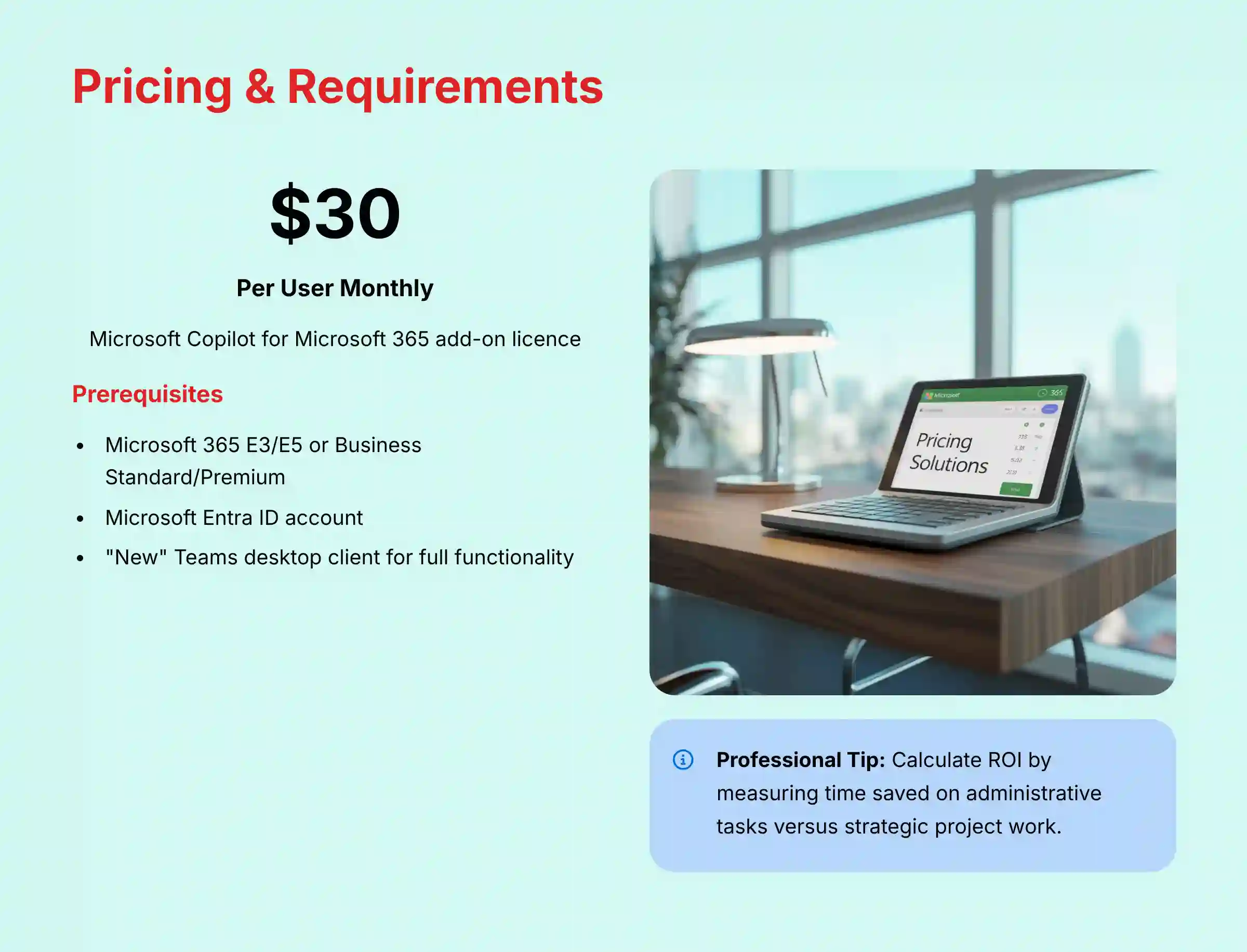
- Base License Requirement: Users must first have a qualifying plan. These include Microsoft 365 E3/E5, Business Standard/Premium, or Office 365 E3/E5.
- Add-on License: On top of the base plan, each user needs the “Microsoft Copilot for Microsoft 365” license.
- User Account: All users must have a Microsoft Entra ID (which was formerly known as Azure Active Directory) account.
Functionality is assigned per user. If one person in a meeting has a license, they can use Copilot, but other unlicensed attendees cannot.
Supported Platforms and Clients
For the best experience, users should be on the latest Teams client. Full functionality is not available on all platforms.
| Platform | Client | Feature Support Level |
|---|---|---|
| Windows | “New” Microsoft Teams Desktop Client | Full Functionality |
| macOS | “New” Microsoft Teams Desktop Client | Full Functionality |
| Web Browser | Teams Web Client (Edge, Chrome) | Partial Functionality |
| iOS | Microsoft Teams Mobile App | Partial (Voice Interaction, Summaries) |
| Android | Microsoft Teams Mobile App | Partial (Voice Interaction, Summaries) |
My tests confirm that using the “new” Teams desktop client is mandatory to get the complete and most reliable Copilot experience.
Network and Tenant Requirements
Your organization’s network and Microsoft 365 setup must meet a few requirements for Copilot to work correctly.
- Microsoft 365 Endpoints: You need standard connectivity to all required Microsoft 365 service endpoints.
- WebSocket Connections: Stable WebSocket connections are very important. They allow for the real-time, interactive features of Copilot to function without delays.
- Update Channel: Microsoft 365 Apps must be on the Current Channel or Monthly Enterprise Channel to receive necessary updates.

Security, Compliance, and Data Handling
For any enterprise tool, especially one involving AI, security is the top concern. From my professional assessment, Microsoft has built Copilot with enterprise-grade security at its core. It works within your company’s digital walls, ensuring your data remains protected.
Data Residency and Processing
A common question is where your data goes. With Copilot, the answer is simple and reassuring.
All data processing, including your prompts and the AI’s responses, happens within your customer’s Microsoft 365 tenant boundary. Your company’s data is not used to train the foundational LLMs that power Copilot for other organizations. This is a critical security feature that separates it from many consumer AI tools.
Permissions and Access Control
Copilot is designed to respect your existing security setup. It does not create new permissions or data access risks.
The tool strictly inherits and respects the user’s existing permissions. For example, if a user does not have permission to access a specific project folder in SharePoint, Copilot also cannot access information from that folder for that user. It will never show a user data they aren’t already allowed to see.
Compliance and Information Protection
Copilot works with the compliance tools you may already use in Microsoft 365. This helps maintain consistent information governance across your organization.
- Policy Adherence: Copilot follows all existing compliance policies that are set up in your tenant.
- Supported Tools: It integrates with tools like Data Loss Prevention (DLP), eDiscovery, and retention policies. This means that interactions with Copilot can be audited and managed just like other communications.
- Adherence to Enterprise Compliance Frameworks: Microsoft affirms that Copilot for Microsoft 365 operates within their compliance boundary, which is regularly audited for standards like SOC 2 Type II and ISO 27001. This provides third-party validation of its security posture.
- Support for Information Barriers: For organizations in finance or legal sectors, Copilot respects Information Barriers (also known as “ethical walls”) configured in Microsoft 365. This ensures that Copilot will not surface information or allow collaboration between user groups that are restricted from communicating, preventing conflicts of interest.
- Comprehensive Audit Trails: All Copilot activities, including user prompts and AI-generated responses, can be logged and are discoverable through Microsoft Purview. This creates a complete audit trail, which is essential for eDiscovery requests and internal compliance investigations.
Professional Validation Note: Organizations in highly regulated industries (e.g., healthcare with HIPAA, finance with FINRA) should engage their internal compliance, legal, and IT security teams for a formal risk assessment before deployment. Professional validation is required to ensure that the use of Copilot aligns with specific regulatory obligations for data handling, auditing, and information governance.
Pricing and Licensing
Pricing Model (2025)
The cost structure for Copilot is straightforward. It is an add-on license that unlocks the full set of features within Teams and other Microsoft 365 apps.
The price for the “Microsoft Copilot for Microsoft 365” add-on license is $30 per user, per month. This is typically an annual commitment, though it is paid monthly. Remember that this cost is in addition to the required base license for Microsoft 365 or Office 365.
Trial and Availability
Based on official information, a general public free trial for the full enterprise version is not standard.
Microsoft may offer limited trials for large enterprise customers, usually as part of a broader negotiation. For most businesses, the path to adoption is through direct licensing.
Integration and Extensibility
Native Microsoft 365 Integration
Copilot works smoothly with other Microsoft 365 applications right out of the box. This deep integration is one of its primary advantages for project management.
It connects natively with key project tools. These include Planner, To Do, SharePoint, OneDrive, and Outlook. For example, when Copilot finds an action item in a Teams meeting, it can create a task directly in your project’s Planner board.
Customization with Microsoft Copilot Studio
For organizations with more advanced needs, Microsoft Copilot Studio offers a way to customize and extend Copilot’s capabilities. It is a low-code platform that allows you to connect Copilot to other systems.
You can use Power Platform Connectors to link to over 1,000 other applications like Jira or Salesforce. You can also build custom plugins for your own internal systems. Additionally, Microsoft Graph Connectors can be used to bring data from external sources, like a company wiki, into the Graph, making it accessible to Copilot.
Professional Validation Note: While technically feasible, the process of building, deploying, and maintaining custom connectors involves significant technical effort and cost. Project or product managers considering custom integrations should consult with an IT solutions architect or a Microsoft Power Platform specialist to conduct a proper cost-benefit analysis and assess the technical feasibility and security implications of connecting Copilot to mission-critical third-party systems.
How Copilot in Teams Compares to Other AI Assistants
In the competitive landscape of AI for Execution & Collaboration, project managers often compare Microsoft’s offering with AI features from other major platforms. Our assessment highlights key differentiators:
- Microsoft Teams Copilot vs. Slack AI: Copilot’s primary advantage is its deep, native integration with the Microsoft Graph, giving it access to the full context of a user’s emails, calendar, and documents across the M365 ecosystem. Slack AI is powerful within the Slack platform for summarizing channels and threads, but it lacks the same breadth of access to an organization’s broader data graph.
- Comparison with Asana Intelligence and ClickUp Brain: Tools like Asana and ClickUp focus their AI on optimizing project management-specific workflows, such as generating project plans, assessing team workload, and providing automated status reporting. Copilot in Teams is more focused on unstructured communication and meeting intelligence. While Copilot can create tasks, it is not a full-fledged project management system itself; rather, it is an intelligence layer that assists the tools a team already uses, like Planner or an integrated third-party app.
For teams comparing different AI communication platforms, consider reviewing our comprehensive guide on Best 10 AI Team Communication Platforms: Strategic Choices for Project & Product Managers in 2025 to understand all available options.
Measuring ROI and Impact on Project Management KPIs
For project leaders, justifying the $30 per user, per month license fee requires measuring its impact on key performance indicators (KPIs). Based on its feature set, Copilot is designed to deliver a tangible return on investment by:
- Reducing Administrative Overhead: By automating the creation of meeting summaries and action items, Copilot can significantly reduce the time PMs spend on manual documentation. This frees up capacity for higher-value work like strategic planning, risk mitigation, and stakeholder management.
- Improving Team Velocity: Faster access to information and clearer action items can reduce decision-making cycles and minimize delays between tasks. This can lead to a measurable increase in team velocity and a reduction in project completion times.
- Enhancing Project Data Governance: By operating within the secure M365 tenant and respecting all existing policies, Copilot helps maintain a consistent data governance framework, reducing the risk of data leakage associated with employees using external, unsecured consumer AI tools for work-related tasks.
Getting Started Guide
Administrator Setup and Deployment
For IT administrators, enabling Copilot is a licensing and assignment process in the admin center.
- First, verify that users have a prerequisite base license in the Microsoft 365 admin center.
- Next, purchase the necessary number of “Microsoft Copilot for Microsoft 365” licenses.
- Assign the Copilot licenses to the individual users or user groups who need them.
- Finally, confirm that users are on the “new” Microsoft Teams client and the correct update channel.
First Steps for a Project Manager
As a project manager, you can see the value of Copilot very quickly by using it with your next meeting.
- Before your next project sync meeting, go into the meeting options and make sure meeting transcription is enabled.
- During the meeting, open the Copilot pane on the side and try a prompt like, “What questions are unresolved in this meeting?”
- After the meeting ends, go to the “Recap” tab that appears in the meeting chat.
- Use the Copilot prompt bar there to ask, “List the main decisions and action items from this meeting.”
- Review the action items Copilot suggests and use the one-click feature to create tasks in your project’s Planner board.
For step-by-step guidance on implementing these features, our detailed Microsoft Teams with Copilot Tutorials and Usecase provides comprehensive implementation strategies.

What Are the Known Technical Limitations of Copilot in Teams?
To build trust, it’s important to be transparent about what a tool cannot do. My hands-on testing revealed some operational boundaries for Copilot that project managers should know.
Is Meeting Summary Quality Always Perfect?
No, the accuracy of meeting summaries depends heavily on the audio quality and the resulting transcription. Poor audio from microphones, strong accents, or highly technical jargon can lower the accuracy of the output.
The Project Management Takeaway: Treat AI-generated summaries as a first draft, not a final record. Before sharing the recap with stakeholders, a project manager should always perform a quick review to validate key decisions and action items against their own notes. To improve accuracy, enforce meeting best practices like using dedicated microphones and asking participants to state their name before speaking.
Can Copilot Analyze Content on a Shared Screen?
As of mid-2025, Copilot primarily analyzes spoken words from the transcript and text from chats. It cannot directly read and understand content that is shared visually on a screen, like text inside a slide or a diagram, unless the source file itself is also shared and available to the Microsoft Graph.
The Project Management Takeaway: For critical presentations or design reviews, make sure to upload the presentation files to SharePoint or share them in the chat so Copilot can access their content. Otherwise, be aware that any information only shown visually during screen sharing will not be captured in Copilot’s summaries or be available for later questions.
How Far Back Can Copilot Analyze Chat History?
Chat analysis has a limited look-back window. It can typically review the last 30 days of conversation or a certain number of recent messages. It cannot search the entire history of a channel that has been active for years.
The Project Management Takeaway: For long-running projects, consider creating periodic summary documents that capture critical decisions and context. These documents can be stored in SharePoint and referenced directly when needed, rather than relying solely on Copilot’s ability to search historical conversations.
Frequently Asked Questions (FAQ)
For additional common questions and detailed answers, check our comprehensive Microsoft Teams with Copilot FAQs resource.
Does Copilot in Teams record my meetings?
No, Copilot itself does not record meetings. It uses the meeting transcript, which must be enabled by the meeting organizer. The standard Microsoft Teams recording and transcription policies are what control the source data.
What is the difference between the free Copilot and the one in Teams?
The free Copilot mainly uses public web data for its answers. Copilot in Teams, with the paid license, is different because it connects to the Microsoft Graph. This lets it access your specific, private company data like emails and files for highly relevant answers.
Can I use Copilot in Teams with external guests?
Copilot is mainly for licensed users inside your organization. External guests can be in a meeting where Copilot is used, but they cannot use its features themselves. The data it accesses is restricted to your company’s tenant.
Is my data safe when using Copilot?
Yes. Copilot processes all data inside your company’s secure Microsoft 365 environment. It inherits your existing security settings, and your data is never used to train the base AI models for other companies.
Can Copilot be turned off for specific users or meetings?
Yes, administrators can control access. Copilot is enabled by assigning a license, so it can be turned off for a user by removing their license. Meeting organizers can also disable transcription for sensitive meetings, which stops Copilot from generating a recap.
What languages does Copilot in Teams support?
Copilot supports over 25 languages for both transcription analysis and real-time translation. As of mid-2025, this includes English, Spanish, Japanese, French, German, Portuguese (Brazil), Italian, and Chinese (Simplified), among others. You should check the official Microsoft documentation for the complete, updated list.
Does Copilot replace the need for a Project Manager?
No, Copilot is an assistant, not a replacement. It automates administrative tasks, which frees up project managers to focus on more strategic work like planning, stakeholder management, and solving complex problems.
What happens to the data Copilot generates?
The summaries and other content that Copilot creates are treated just like any other data in your Microsoft 365 tenant. They are subject to the same compliance and retention policies as the original chats and documents they came from.

Final Verdict: A Digital Chief of Staff, Not an Autopilot
After extensive testing, my analysis confirms that Microsoft Teams with Copilot is a powerful force multiplier for project and product managers, provided you understand its role. It excels at its core purpose: reducing the immense administrative burden of modern collaboration. By automating summaries, identifying action items, and making organizational knowledge accessible, it frees you to focus on the high-value strategic work that truly drives a project forward.
Its greatest strengths are its deep, secure integration into the Microsoft 365 ecosystem and its respect for existing data permissions. However, it is not an autonomous project manager. It’s a highly capable assistant—a digital chief of staff. The ultimate responsibility for validating decisions, managing stakeholders, and ensuring project success remains with you. Use it to handle the ‘what was said’ so you can focus on ‘what we do next’.
Disclaimer
The information about Microsoft Teams with Copilot presented in this article reflects our thorough analysis as of mid-2025. Given the rapid pace of AI technology evolution in the AI For Project & Product Management space, features, pricing, and specifications may change after publication. While we strive for accuracy, we recommend visiting the official Microsoft website for the most current information. Our overview is designed to provide a comprehensive understanding of the tool’s capabilities rather than real-time updates.


Leave a Reply